CMS Support
Help for CMS partners building, submitting and updating apps for the Amazon Signage Stick, and for operators troubleshooting their CMS.
CMS Troubleshooting
Screen orientation support by CMS, and CMS apps that block the Stick settings menu.
Updating Your CMS App
How to get a new version of your app onto Amazon Signage Sticks. Publishing to the Amazon Appstore alone does not update Signage devices.
Appstore Submission Guide
The Appstore rejections we see most from CMS partners, and how to fix or avoid each one.
CMS Troubleshooting
Screen orientation support by CMS, and CMS apps that block the Stick settings menu.
While the Signage Stick itself does not support screen orientation changes, many of the CMSs that work with the Amazon Signage Stick do provide this functionality.
Here's a list of the CMS platforms and their supported screen orientation options:
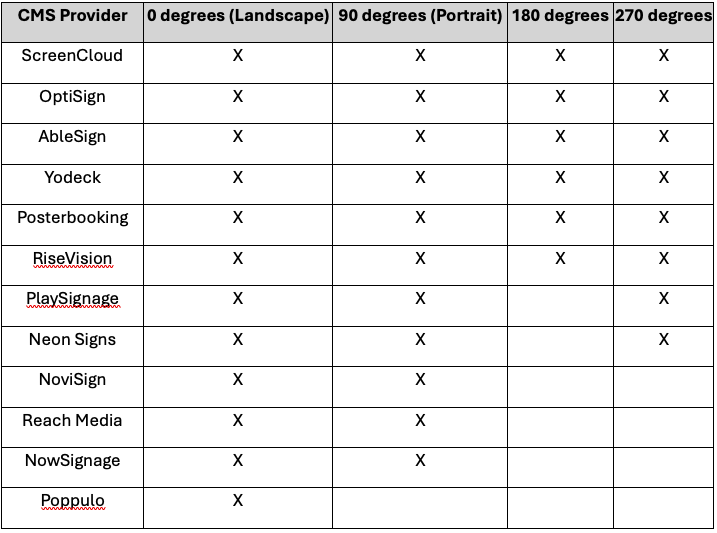
Many CMS providers have features that can override or interfere with the Signage Stick settings menu. To prevent this, identify the feature. Different CMS providers use various terms for this functionality:
* ScreenCloud calls it "sticky mode"
* PlaySignage refers to it as "Launch on Play"
* Other providers may use different terminology
Disable the feature:
* Locate this setting in your CMS provider's configuration or settings menu
* Disable or turn off the feature
* Once disabled, you should be able to access the Signage Stick Settings without interruption from your CMS app.
Note: The exact steps to disable this feature may vary depending on your CMS provider. Consult your provider's documentation or support if you need specific instructions.
Caution: Disabling this feature might affect how your CMS app behaves. Ensure that this change doesn't negatively impact your intended use of the CMS.
Updating Your CMS App
How to get a new version of your app onto Amazon Signage Sticks. Publishing to the Amazon Appstore alone does not update Signage devices.
Is your app enabled for OTA?
OTA-enabled: updates reach Sticks already in use automatically, with no factory reset.
Not OTA-enabled: Sticks already in use keep their current version. New Sticks, or Sticks that are factory reset and set up again, install the new version.
Not sure? Ask signage-support@amazon.com.
1. Run full QA on your build
Test the new build thoroughly before you submit. For OTA-enabled apps, the Amazon Signage team does not QA updated APKs. To sideload a build onto a Signage Stick for testing, ask signage-support@amazon.com for instructions.
Check your build for the issues we find most often in QA:
How to check
During playback, open Settings or press Home, then go back to your app. Also change the date and time in Settings and go back. Playback should continue without freezing, going black or staying on your splash screen.
Common cause: the player (ExoPlayer, MediaPlayer or WebView video) is paused or released in onPause()/onStop() and not prepared again in onStart()/onResume(), or the video Surface is destroyed and not reattached. After a date or time change, signed or token-based requests (for example AWS SigV4 or JWT) can be rejected for clock skew (HTTP 401/403). Listen for ACTION_TIME_CHANGED, resync time from the server Date header, retry with backoff, and keep playing cached content.
How to check
Reboot the Stick. Then turn Wi-Fi off and on during playback. Your app should start on its own and resume playback.
Common cause: the app checks connectivity once at launch and gives up if the network isn't ready yet. Register a ConnectivityManager.NetworkCallback and reconnect in onAvailable() once the network has NET_CAPABILITY_VALIDATED. Enable auto-reconnect on MQTT or WebSocket clients, and clear any cached offline state when the network returns.
2. Prepare your submission
- Increment versionCode: It must be higher than the version currently live. versionName is display-only, so increment both.
- Turn off Amazon DRM: Select No for "Allow Amazon to Apply DRM" and remove the Appstore SDK or any DRM-related APIs. A DRM-wrapped APK can't be distributed over OTA.
- Target Fire TV Stick 4K Max (2nd Gen), AFTKRT: Amazon Signage isn't listed as a device option.
- Pick a business category: For example Business. A consumer category such as Social has caused a rejection.
- Pairing QR code? Make sure the page it opens is sign-in only, and add a note for the reviewer. See QR code on your pairing screen.
Read the Appstore Submission Guide before you submit. It covers most of the rejections we're asked to help with.
3. Wait for full Appstore approval
Don't contact us until the submission is fully approved and live in the Amazon Appstore.
4. Send us the completed release form
Email signage-support@amazon.com with the completed form below: your app name, APK version, Appstore URL, and the Remote Management API capabilities your build actually calls. Please don't email APK files. We retrieve the app from the Appstore.
Only mark capabilities your app calls today. Our QA covers exactly the rows you mark, and a marked capability your app doesn't call fails testing. For each marked row, tell us how to trigger it from your portal, including any credentials or settings we need.
5. We deploy the update
We upload the APK to our OTA servers, typically within 5 business days. For apps that aren't OTA-enabled, we deploy to the Signage backend instead. To validate on your Demo devices first, say so when you send the form.
6. You get a confirmation
We email you when deployment is complete.
7. Devices install overnight (OTA-enabled apps)
Devices install the update during a nightly maintenance window starting at 2:00 AM device-local time, if they're powered on and online. Allow about a day for a full fleet.
Appstore Submission Guide
The Appstore rejections we see most from CMS partners, and how to fix or avoid each one.
Got a rejection? Appstore review is run by a separate Amazon team with its own case system. Open a case with Amazon Appstore Developer Support and work through it with them first. Most rejections can be resolved there with the guidance on this page. If the case doesn't make progress, email signage-support@amazon.com with your case number and the same information, and we'll do our best to help.
Not listed here?
Ask in your Appstore case which policy the submission actually failed, and for the validation result breakdown. A summary of the notice is rarely enough, because the wording comes from a template and doesn't always name the policy that failed. If the case doesn't make progress, email signage-support@amazon.com with the verbatim rejection notice, the validation result breakdown and your case number, plus your app name, package name, app ID and store URL. We'll contact the Appstore team on your behalf.