
How to choose the right digital signage CMS–10 questions to ask
Ask these 10 questions before you pick a digital signage CMS, and see how hardware fits in.


Choosing a content management system (CMS) and choosing hardware aren’t two separate decisions—they’re one. Here’s a practical guide to evaluating digital signage software in the context of your business needs before you deploy.
Picking a CMS for digital signage isn’t complicated—until you’ve already deployed just one or even a handful or more of screens and realized the software doesn’t do what you need it to do.
The CMS is the part of your signage setup that you’ll interact with every day. It’s where content gets built, scheduled, pushed, and monitored. Get the CMS decision wrong and you’ve got an ongoing–and potentially costly–operational problem. These questions won’t guarantee a perfect outcome, but they’ll surface the gaps before they become expensive ones.
1. Does it run on the hardware you’re planning to use—or hardware you already have?
Some CMS vendors sell you their own player and bundle the software with it. That’s a legitimate model, but it means you’re buying two things when you think you’re buying one. Others are hardware-agnostic and will run on a range of devices—commercial media players, certain smart displays, or purpose-built signage sticks.
As you evaluate features to validate the CMS will meet your business needs, know whether the software runs on the hardware you’re planning to deploy or already have. Look to see what claims the CMS makes regarding compatibility, so you are not surprised when you’re troubleshooting a screen that’s gone dark at a remote location.
Compatibility is about more than whether the CMS runs on a device. Ask how well the two work together–how the CMS uses the device’s APIs, how remote device management is handled, how software updates are delivered and tested, how security is maintained, and who is responsible for ongoing maintenance as both the CMS and the hardware evolve.
2. What will it actually cost?
For most buyers, cost is the first filter, so get specific about what you’re paying for. Is pricing per screen, per user, or tiered by features? Is it billed monthly or annually, and is there a minimum commitment or a free trial so you can test before you buy?
Then look past the subscription price. Find out which capabilities are included and which are add-ons: remote device management, AI tools, additional users, or premium support. A low entry price that charges extra for the features you need isn’t low-cost for long. And remember that software is only part of the picture. Hardware, installation, and the time your team spends creating and managing content all count toward what a deployment–and ongoing management - really costs.
3. How does it handle content at scale—and who’s actually doing the work?
A CMS that’s simple enough for a two-screen lobby setup can become unmanageable once you’re running content across 20 or 200 locations. Ask specifically how the CMS handles bulk scheduling, location-level overrides, and permissions for distributed teams.
If different departments or franchisees need to control their own screens within a shared structure, how does that work? Does the CMS let you set guardrails—approved templates, locked zones—while still giving regional or local teams flexibility? Or does centralized control mean someone is fielding every content request from every site?
4. Who can create content, and who has to approve it?
As more people touch your screens, control matters. Ask how the CMS handles user roles. Can you give content creators access to build and schedule content while limiting settings, devices, and billing to administrators? Can you restrict a store manager or department lead to their own screens?
For larger organizations, also ask about approvals. Many enterprises require legal, brand, or compliance review before anything goes live. Find out whether the CMS has a built-in approval workflow or can connect to the approval systems you already use, so review doesn’t become a bottleneck or get skipped.
5. How will your team create content, and can AI help?
Most teams aren’t going to learn a new design tool just to put something on a screen. If your team is already creating content in Canva or PowerPoint, ask how that content gets into the CMS. Can you import files directly or connect to the tool, or will you be exporting and re-uploading every time something changes? Also look at what the CMS offers natively: templates, a drag-and-drop editor, and support for the formats you use, such as video, images, and live data.
AI is showing up in more CMS applications, but capabilities vary widely. Ask what it actually does. Does it help draft copy, suggest layouts, resize content for different screens, or translate messages for different locations? Then ask whether it’s included in your plan or an added cost, and how your team can review and edit anything it produces before it goes live. For small teams without a dedicated designer, the right mix of familiar tools and AI can be the difference between signage that stays fresh and signage that goes stale.
6. What does remote management actually include?
When it comes to a CMS, “remote management” usually means managing content from anywhere: building, scheduling, and updating what plays across your screens from a hosted, browser-based interface. At minimum, you want to update content across locations, schedule by screen or group, and see what’s set to play without visiting a site.
Operational stability is the other half, and that’s remote device management. Can you see which devices are online, get alerts when a screen goes offline, and confirm it’s actually playing content rather than just connected? Can you restart a player without dispatching someone? Ask whether those capabilities live in the same interface as your content management or in a separate tool. With the Amazon Signage Remote Management API, available on the Amazon Signage Stick and Amazon Signage Display, participating CMS providers can bring device management into their own applications, so it can all happen in one place.
Also worth clarifying: is remote device management included in the standard plan, or does it require an upgrade?
7. How does it handle offline playback?
If your internet connection drops, your screens should keep playing. The media player stores content locally, but the CMS decides what’s on the device when the network goes down. That makes this a question for your CMS provider as much as your hardware vendor.
Start with how the CMS manages the cache. Does it push your full schedule and media to the device ahead of time, or only what’s playing next? How far ahead do schedules sync, so time-based content still changes on time while a screen is offline? And once the connection returns, how does it sync updates and report back on what actually played?
The CMS and hardware also have to work well together. Storage capacity and run time depend on the player, but the CMS controls how that storage is used, so ask your provider how offline playback has been tested on the hardware you plan to deploy.
For high-traffic or operationally critical environments, this is non-negotiable. For a break room display, a briefly blank screen might be acceptable. Know your threshold before you assume the setup meets it.
8. What does integration actually look like in practice?
Most CMS applications advertise integrations with data feeds, third-party apps, and business tools. Ask for specifics: which integrations are native versus provider-dependent, which require custom development, and what the process looks like when something breaks.
If you’re planning to pull in live data—inventory levels, queue times, KPI dashboards—understand how that data connection is maintained and who’s responsible for it when the feed goes stale.
9. What does support look like post-deployment?
You’re not just buying software—you’re entering a support relationship. Ask whether onboarding is included or additional, what the SLA looks like for critical issues, and whether you’ll have a dedicated contact or be working through a general support queue.
For multi-location deployments in particular, the quality of post-sales support can matter as much as any feature on the checklist.
Beyond features and pricing, look closely at the CMS provider itself. How experienced is the provider, and how stable is the business behind the software? Ask about long-term support and the product roadmap: can the provider keep maintaining and improving the software as your needs, devices, and security requirements change? A reliable provider matters as much as any feature on the checklist.
10. Have you tested it before you scale?
Before you deploy dozens or hundreds of screens across multiple locations, start with one or two displays. Test the CMS and hardware together in real-world conditions, including content playback, connectivity, remote management, and software updates. Make sure everything works as expected before you commit to a larger rollout. It’s far easier to find and fix a gap on two screens than on two hundred.
Digital signage CMS and hardware–better together
The right CMS decision doesn’t happen in isolation—it happens alongside your hardware decision. Amazon Signage devices are tested to work with a growing network of CMS providers, so you can choose the software that fits your workflow without being locked into a single vendor or proprietary setup.
The Amazon Signage Stick and Amazon Signage Display share the same management tools and CMS provider network, which means you can run both form factors across your deployment under one consistent operational model—a stick where screens are already in place, a display where an all-in-one solution makes more sense—without adding complexity or splitting your management workflow.
There’s no universally right CMS—but there is a right one for your environment, your team, and the way your screens need to perform. These questions get you past the demo and into the specifics that actually determine whether the software works for you. And remember–choosing a CMS and choosing hardware aren’t two separate decisions—they’re one. The organizations that get digital signage right tend to evaluate both together, confirm compatibility before procurement, test with a small pilot before scaling, and build on a foundation that’s as easy to manage on day 300 as it was on day one.
Learn more about Amazon Signage devices like the Amazon Signage Stick and Amazon Signage Display.
We thank Novisign for contributing to this article.
Resources
Digital signage for small businesses–where to start with Xibo and the Amazon Signage Stick
Digital signage no longer needs a professional AV installation or a five-figure budget. See how small businesses get their first display running with Xibo and the Amazon Signage Stick, and download the free guide.
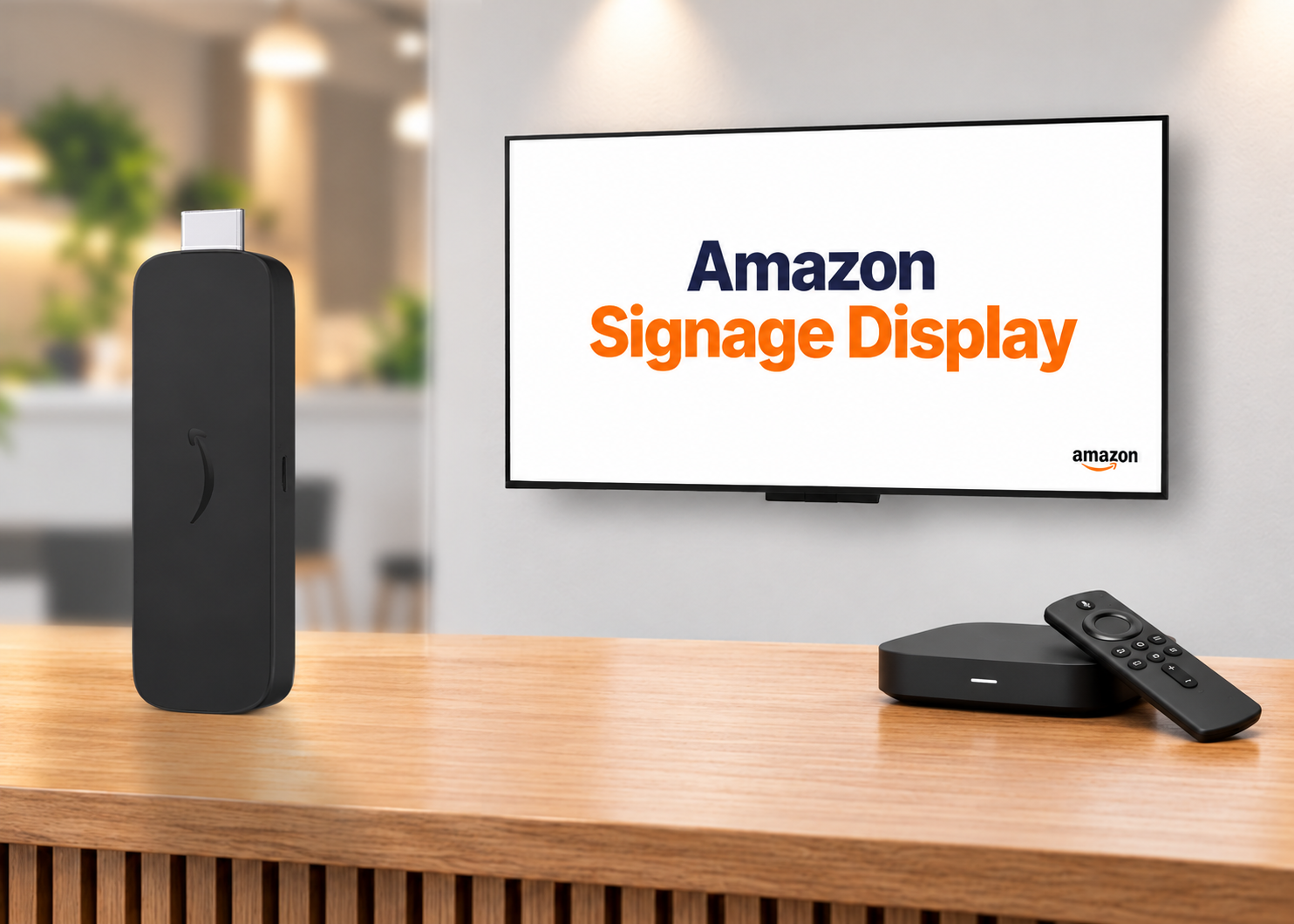
Decoding digital signage hardware–SoC display, specialized player, or purpose-built stick
The media player drives everything in a digital signage deployment. Here’s how the three main hardware categories compare and a framework for choosing the right one.
The hidden cost of "cheap" digital signage
From single-location businesses to enterprise fleets, cheap media players often cost more to operate than they save upfront. Here's what to factor in before you buy.