Add / Manage users
Note: This action can only be performed by the admin user of a company/organization.
Mobile App:
1. Navigate to "Settings" (by tapping the gear icon on the bottom bar), and then tap "Users: Add, edit, or remove users."
2. Tap the plus sign in the top right corner.
3. Enter the email associated with the new user's Amazon account and tap "Add."
Signage Manager Portal:
1. In the Signage Manager Portal, click on the menu icon(three stacked lines) in the top left corner of the page.
2. Click on "My Team."
3. Click on "Add Member" (in the top right corner).
4. Input the email associated with the new user's Amazon account in the textbox labeled "Amazon Account" and click "Save" when done.
Note: This action can only be performed by the admin user of a company/organization.
Mobile App:
1. Navigate to "Settings" (by tapping the gear icon on the bottom bar), and then tap "Users: Add, edit, or remove users."
2. Tap the user you want to remove.
3. Tap "Remove user."
4. To remove multiple users, tap "Select" in the top right corner, select all users to be removed, and then tap "Remove user" at the bottom of the screen.
Signage Manager Portal:
1. In the Signage Manager Portal, click on the menu icon(three stacked lines) in the top left corner of the page.
2. Click on "My Team."
3. Click the trash can icon under the "Actions" column of the table entry corresponding to the user you want to remove and then click "Confirm." To search for the correct user, you can use the "Amazon Account" search bar or the "Member Name" search bar.
Mobile App:
1. Navigate to "Settings" (by tapping the gear icon on the bottom bar), and then tap your user profile (at the top of the screen).
2. Tap "Log out" at the bottom of the screen.
Signage Manager Portal:
1. In the Signage Manager Portal, click on your username in the upper right corner of the page.
2. Click "Sign Out" in the dropdown that appears.
Steps to Transfer Admin Role, from admin member A to regular member B:
1. Sign in as the current admin (Account A)
- Use the credentials for the existing admin account to access the Signage Manager.
2. Remove Member B from Account A
- In "My team," remove Member B from the account. This ensures the new admin setup doesn’t conflict with existing user associations.
- Factory reset first and then unregister your devices.
- Be aware that factory reset, resets your devices, and also unlinks your devices from your CMS, meaning that you would have to set up your device all over again and ultimately pair your devices again with your CMS at the end of this process.
3. Sign out of Account A
- After removal, log out of the Signage Manager completely.
4. Create a new Amazon account for Member B
- On the Amazon Signage Manager login page, select “Create your Amazon account.”
- Complete the registration for the new Amazon account (Account B).
5. Use Account B as the new admin
- Once created, Account B becomes a standalone admin account for device management on Amazon Signage Manager.
6. Transfer devices to Account B
- Sign in to the Signage Manager with Account B and re-pair each device using the new pairing codes.
1. Check the original account:
If your organization has previously set up this stick, please try logging into that same Amazon Signage account used during the first setup.
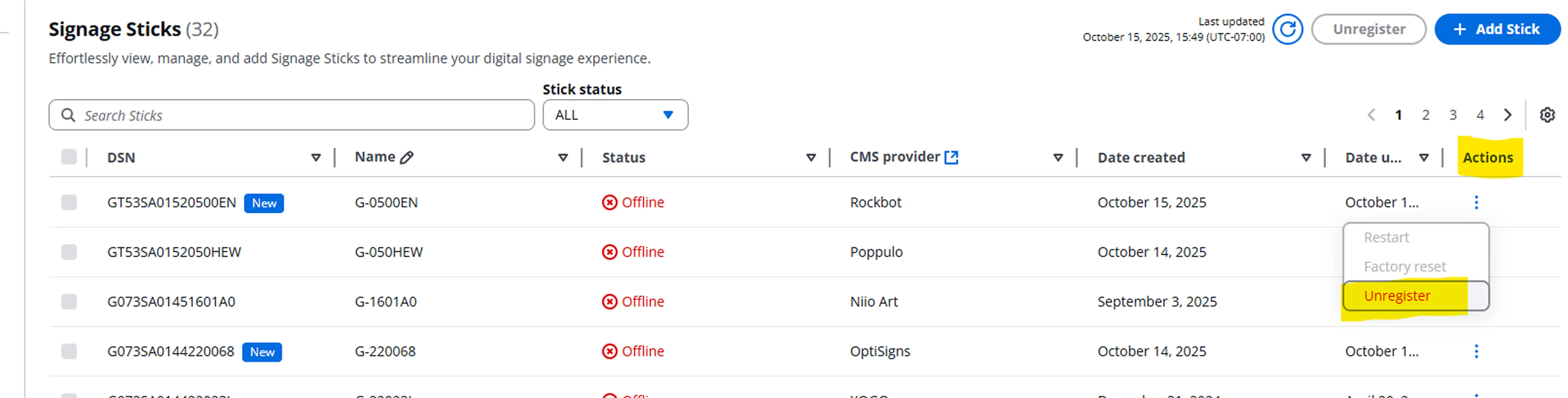
- Go to https://console.signage.amazon.com/ → Login with Amazon → Signage Sticks.
- Locate the stick (you can search by serial number or pairing code).
- Select it and then, under Actions, click on Unregister.
1. If you no longer have access to that account:
Please reply to this email with Device Serial Number (DSN), found on the Amazon Signage Stick box. Once we receive this information, we’ll initiate a backend unbind process and notify you once the device is cleared to re-enroll.
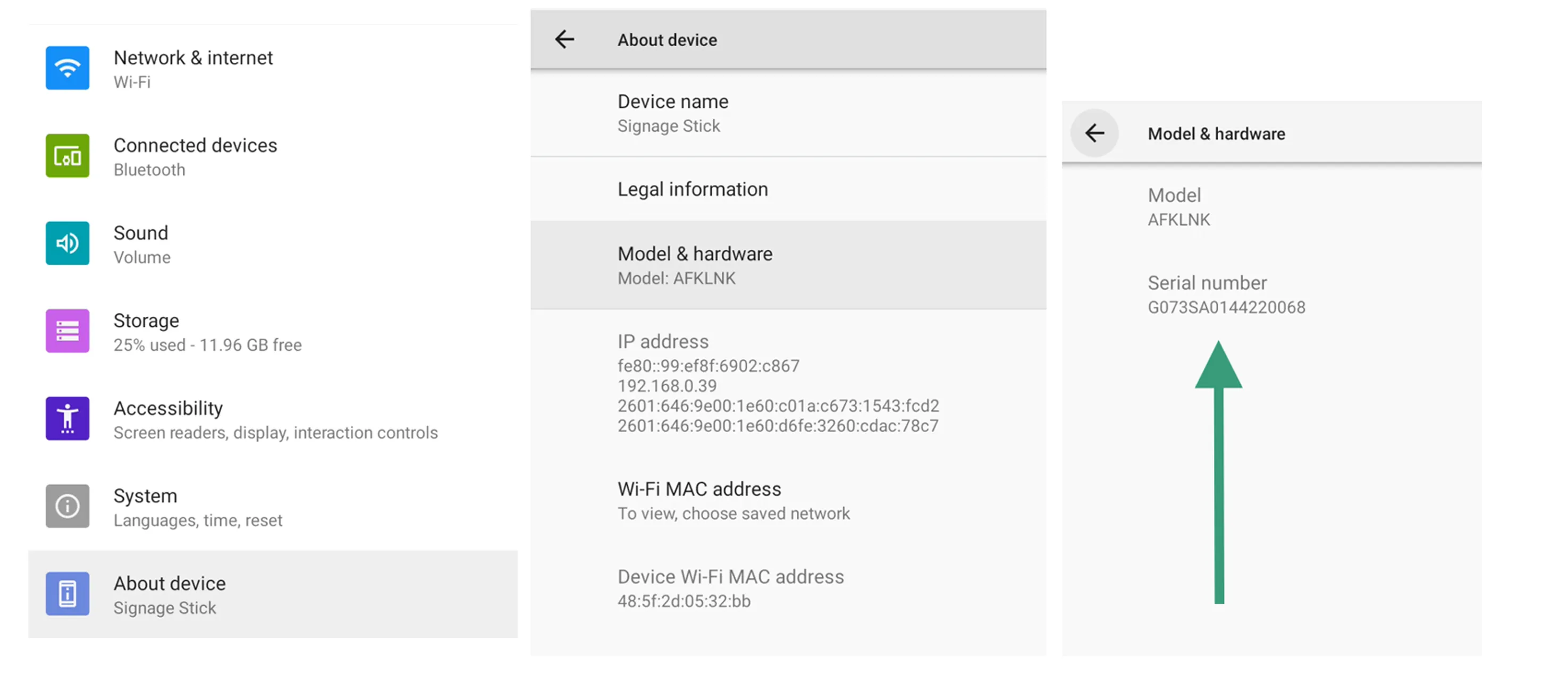
Other than the DSN on your box, you can also find the Device Serial Number (DSN) on your Amazon Signage Stick:
1. On your remote, press the ⚙️ Settings button.
2. Navigate to About Device.
3. Select Model & Hardware.
4. The Serial number will be displayed on screen.
- It typically begins with “G”, for example:
G073SA0144220068
After confirmation, you can retry enrollment through the Amazon Signage mobile app.
Sign in issues / Password reset
If you get a login error or have forgotten your Amazon account password when logging in to the Signage Manager Portal, you can reset your password here.
- Use Incognito mode on your browser.
- Log in using the Mobile app.
- Alternative option: Clear cache on your browser. This is not an ideal workaround as you would have to clear cache every time you visit the Signage Manager site.