Check device status
Mobile App:
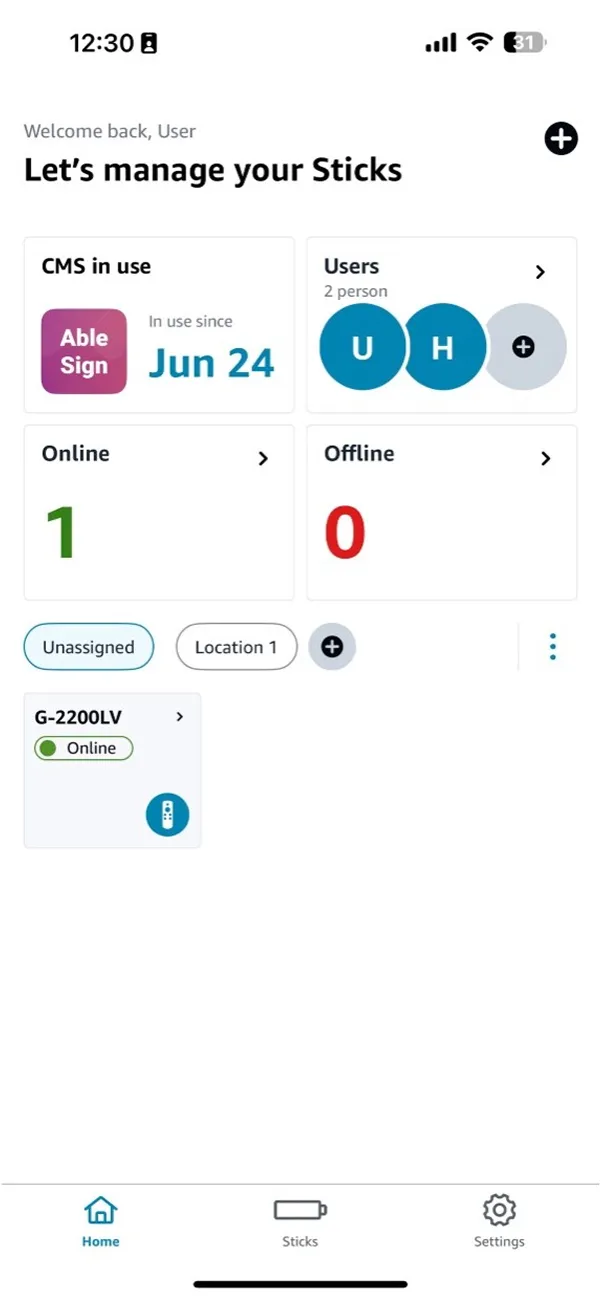
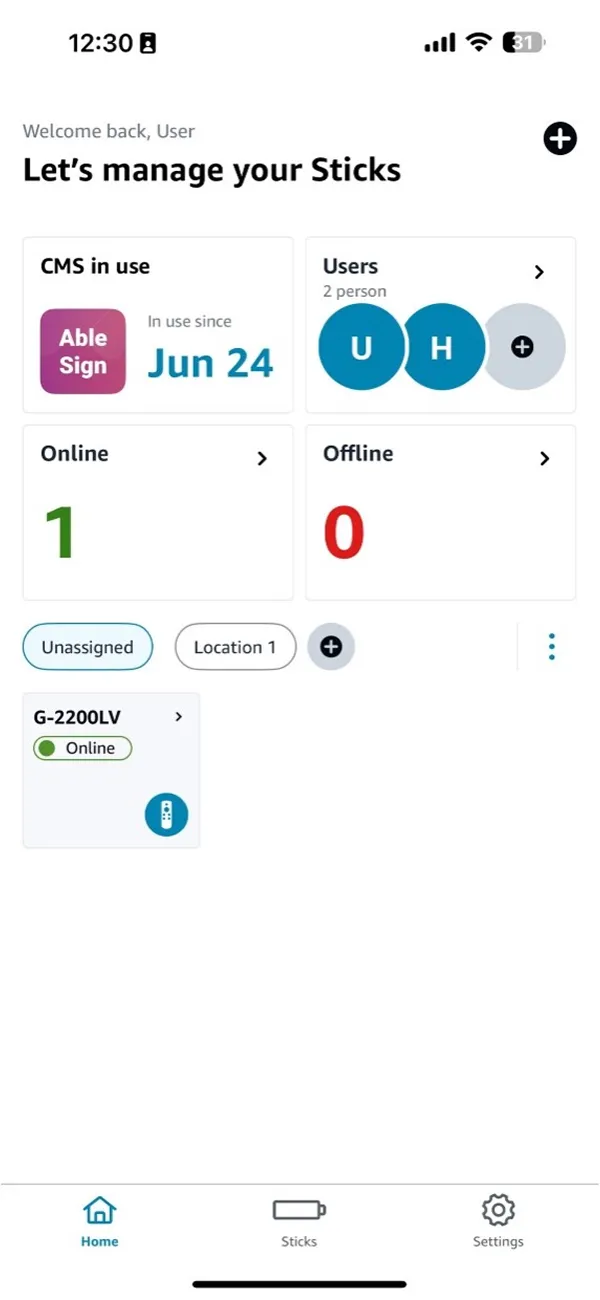
On the homepage, select the location of the Stick from the list in the middle. If the Stick is unassigned, select "Unassigned." Underneath the list, you will see each Stick assigned to that location and its online/offline status.
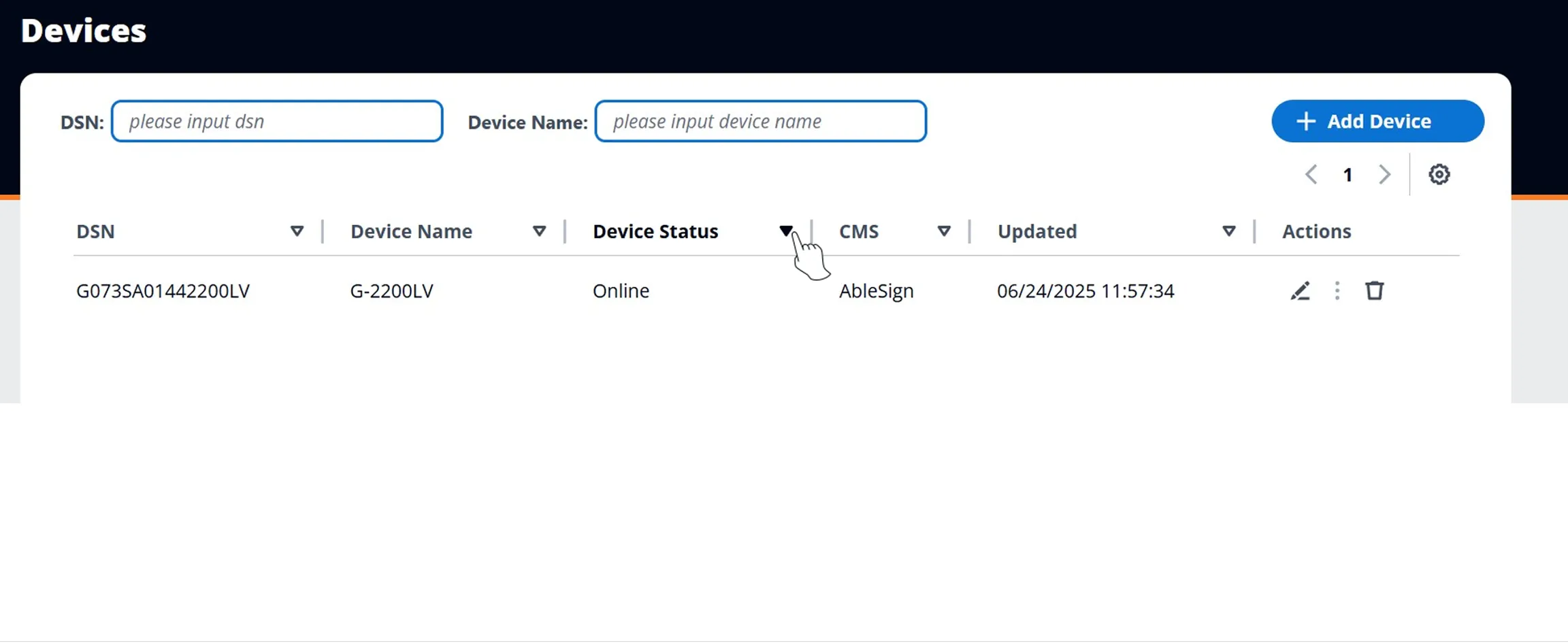
Signage Manager Portal:
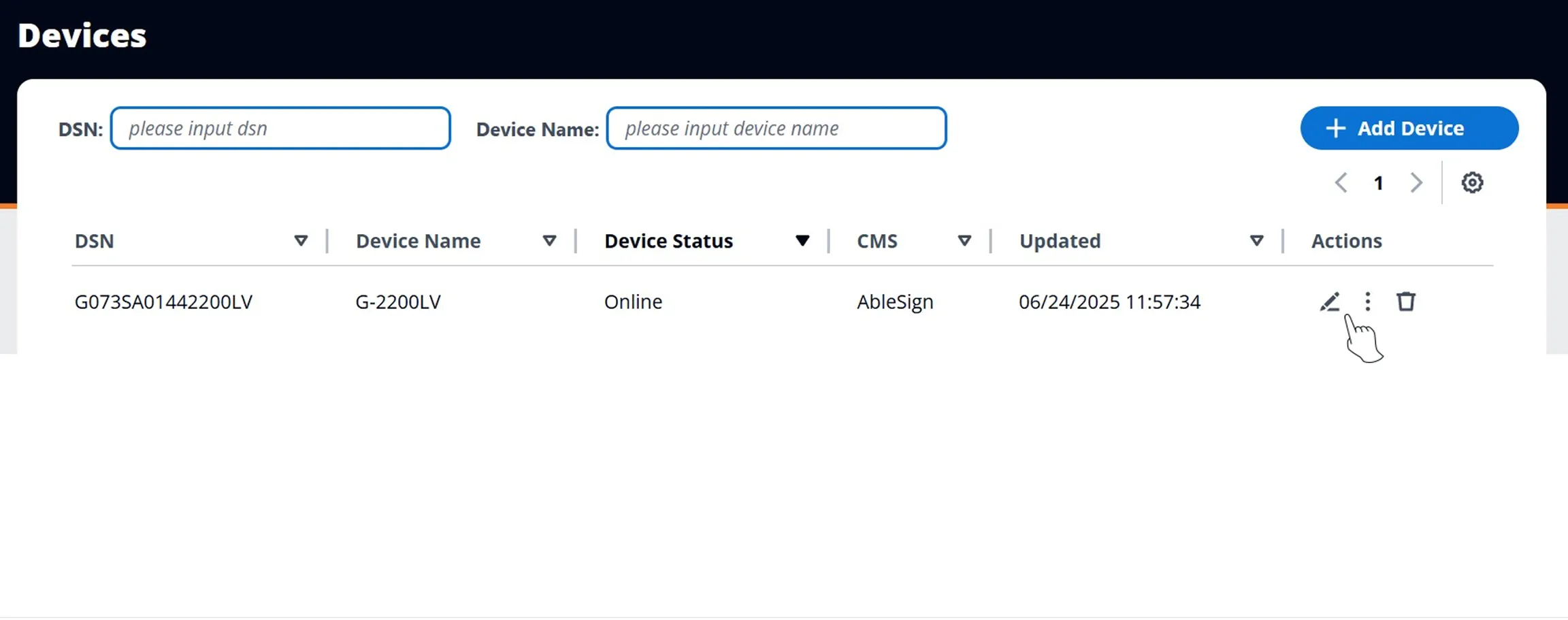
Look at the "Device Status" column of the table entry corresponding to your Stick. To find the correct entry, you can search for the Stick using the DSN search bar or the device name search bar.
Mobile App:
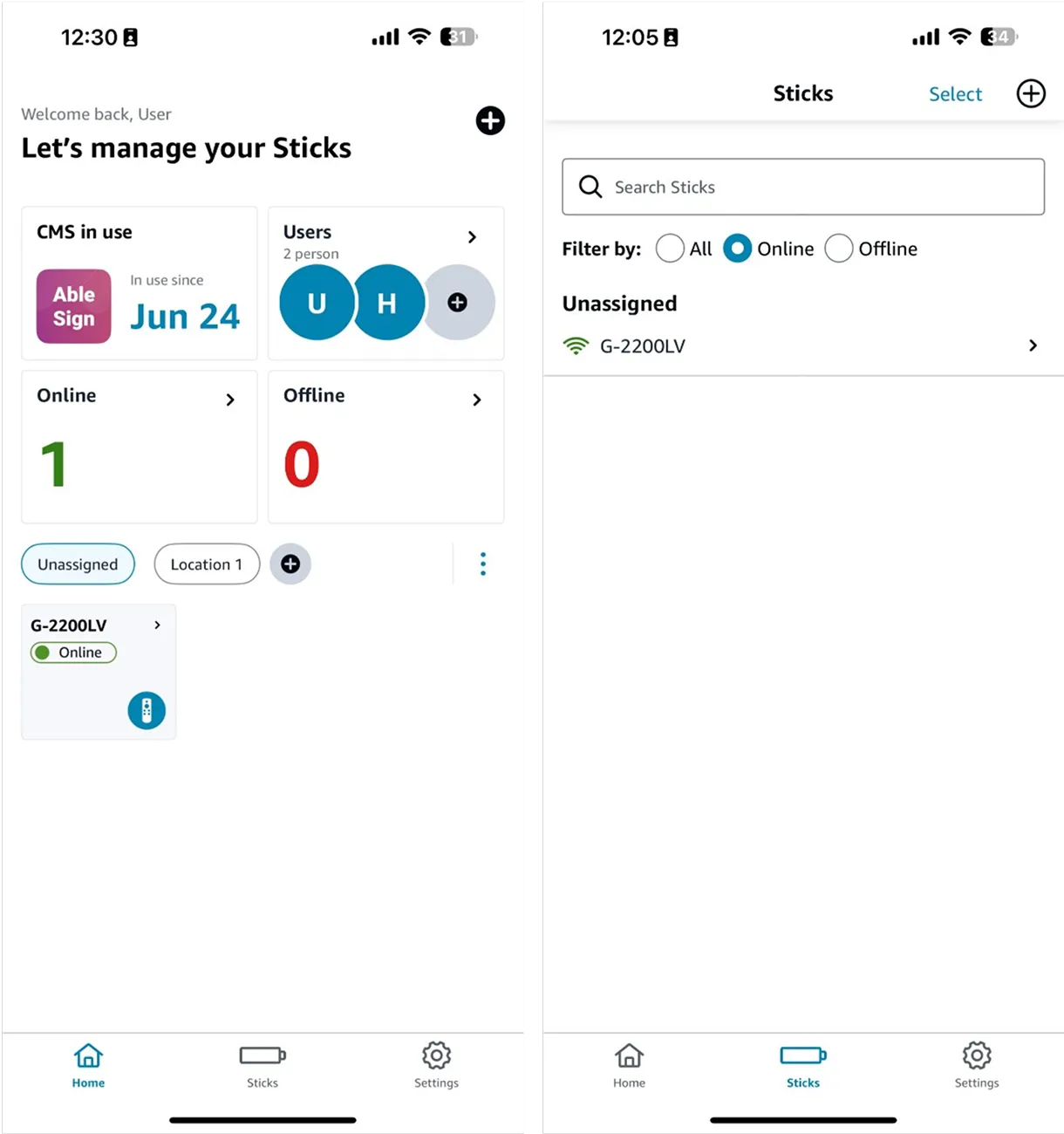
On the homepage, tap the block labeled "Online" to see all online sticks, and the block labeled "Offline" to see all offline sticks.
Signage Manager Portal:
On the devices dashboard, click the down-facing arrow next to “Device Status.” This will group all the “Offline” Sticks at the top and all the “Online” sticks below.
Renaming the Signage Stick
Mobile App:
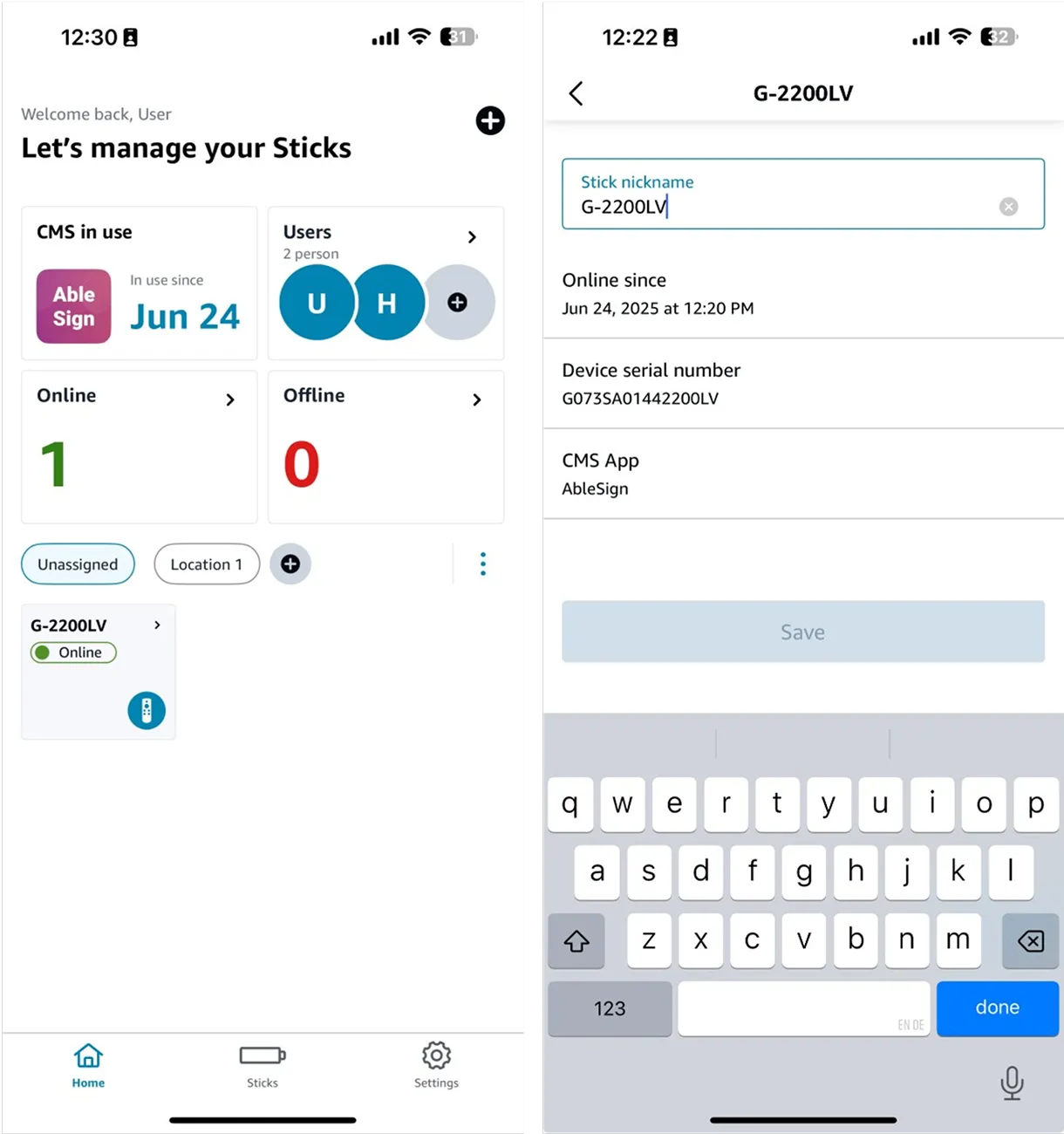
On the homepage, select the location of the Stick from the list in the middle. If the Stick is unassigned, select "Unassigned."
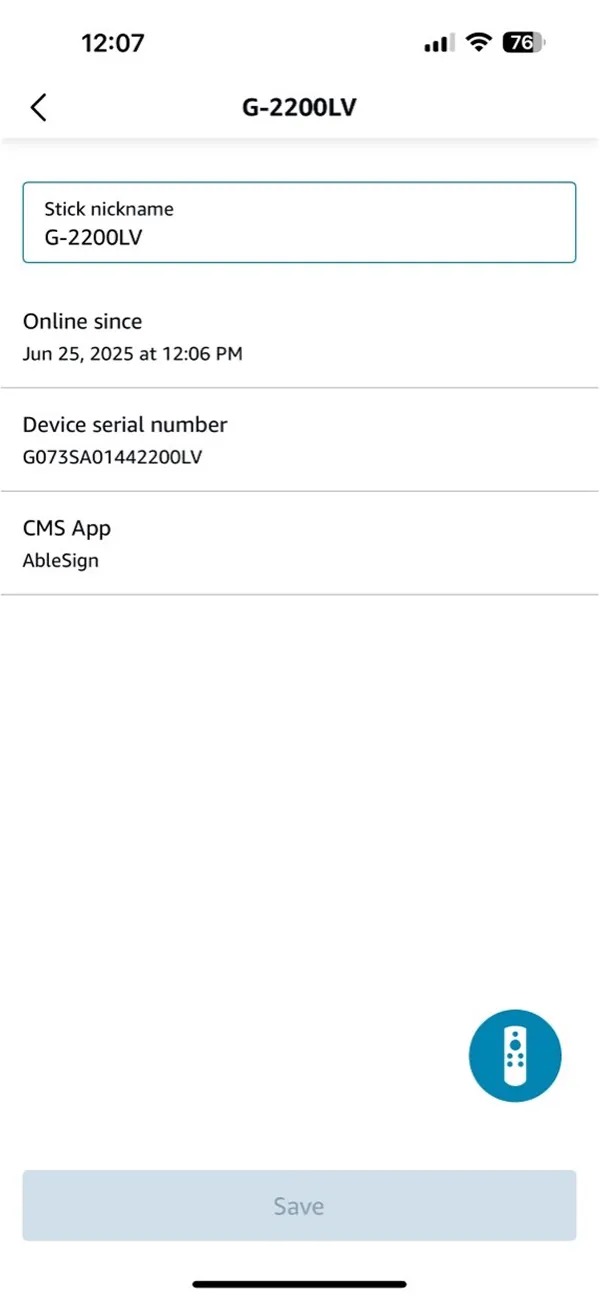
Tap on the Stick you want to rename.
Type in the "Stick nickname" text box and tap "Save" when done to rename your Stick.
Signage Manager Portal:
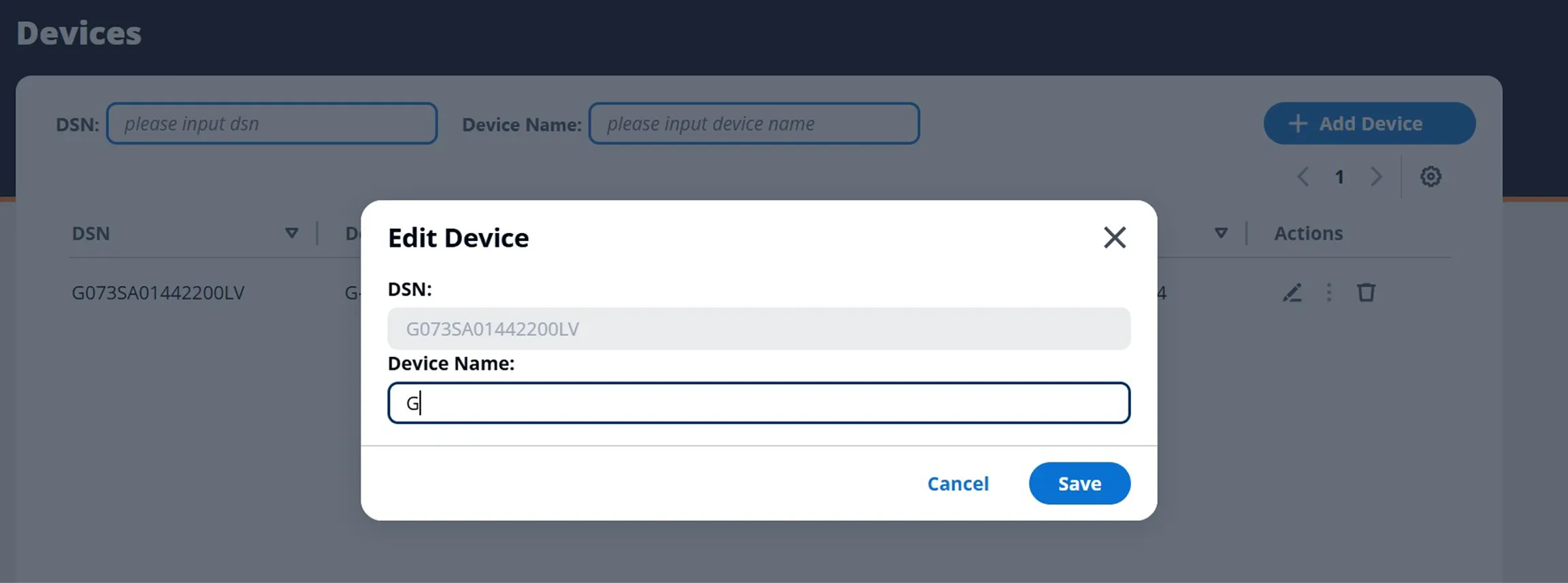
Click the pencil icon under the "Actions" column of the table entry corresponding to your Stick. To find the correct entry, you can search for the Stick using the DSN search bar or the device name search bar.
Reboot / Factory Reset
Mobile App:
1. On the homepage, select the location of the Stick from the list in the middle. If the Stick is unassigned, select "Unassigned."
2. Tap on the Stick you want to restart.
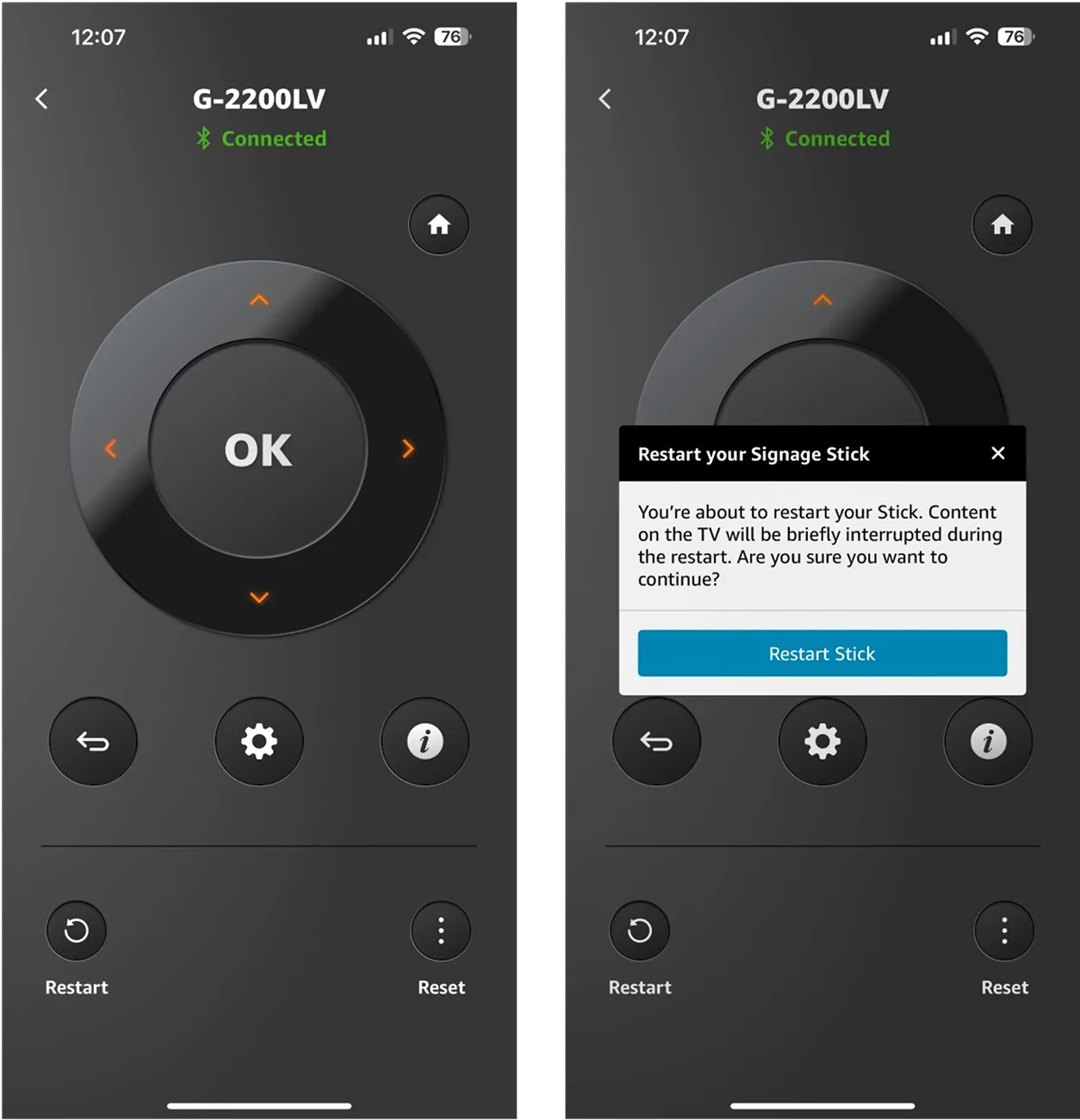
3. Tap on the circular remote-control icon on the bottom right. This will open the remote control.
4. Tap the restart icon on the bottom left.
Signage Manager Portal:
Click the 3 dots in the table entry corresponding to your Stick, and then select “Reboot” from the options. To find the correct entry, you can search for the Stick using the DSN search bar or the device name search bar.
Physical Remote:
Unplug the power adapter, wait 1 minute, and then plug it back in.
Mobile App:
1. On the homepage, select the location of the Stick from the list in the middle. If the Stick is unassigned, select "Unassigned."
2. Tap on the Stick you want to reset.
3. Tap on the circular remote control icon on the bottom right. This will open the remote control.
4. Tap the reset icon on the bottom left. After reset, your Stick will show as "Offline" in the mobile app.
Signage Manager Portal:
Click the 3 dots in the table entry corresponding to your Stick, and then select “Factory reset” from the options. To find the correct entry, you can search for the Stick using the DSN search bar or the device name search bar.
Physical Remote:
Method 1:
1. Press and hold the "Back" button and the right side of the navigation circle together for 10 seconds.
2. The stick will start going through reset automatically after several more seconds.
Method 2:
1. Click on the "Settings" button on your remote.
2. On your screen, choose "System."
3. Choose "Reset options."
4. Use the navigation circle on your remote to select "Erase all data (factory reset)."
Note that a reset stick will still remain in the Signage Manager Portal unless it is manually removed.
Manage display settings
Displaying content in portrait mode with Amazon Signage Stick involves a two-step process:
1. Content Preparation:
a. Convert the content orientation from portrait to landscape using your Content Management System (CMS).
b. This step is necessary because Amazon Signage Stick's display output is always in landscape format.
2. Physical Display Adjustment:
a. After preparing the content, physically rotate your monitor 90 degrees to achieve portrait orientation.
Important notes:
- Regular monitors, unlike smartphones, don't have sensors to detect orientation changes automatically.
- Signage's display output (frame buffer) is always in landscape mode, regardless of the monitor's physical orientation.
- Ensure your monitor supports rotation or has a stand that allows for portrait positioning.
Removing the Signage Stick from the Signage Manager Portal
1. From the dashboard, select the "Trash“ icon.
2. In the pop-up, select "Confirm" to delete the Stick from your account. This will only remove the Stick from your Signage Manager Portal and will not change any settings on the Stick itself.
Do not remove a Stick from the Signage Manager Portal before resetting it.
Using the virtual and physical remote to manage the Signage Stick
Yes, you can. You first need to pair the physical remote with your Stick by following these steps:
1. With your Signage Stick powered on and connected to a screen, launch the mobile app.
2. Launch the virtual remote for your Stick.
3. Tap the "Settings" button on the virtual remote(gear icon). You should see the screen connected to your Stick switch to asettings menu.
4. On the screen, navigate to "Connected devices" using the arrow buttons on the virtual remote to move and the "OK" button to select.
5. On the physical remote, press and hold the "Home" button until you see a flashing orange light.
6. With the virtual remote, navigate to “Pair new device” and select “Amazon Fire TV Remote”. The physical remote should now be paired.
During this setup, if the screen becomes unresponsive to the virtual remote, close the mobile app and reopen it. This should allow you to use the virtual remote regularly again.