CMS Troubleshooting
While the Signage Stick itself does not support screen orientation changes, many of the CMSs that work with the Signage stick do provide this functionality.
Here's a list of the CMS platforms and their supported screen orientation options:
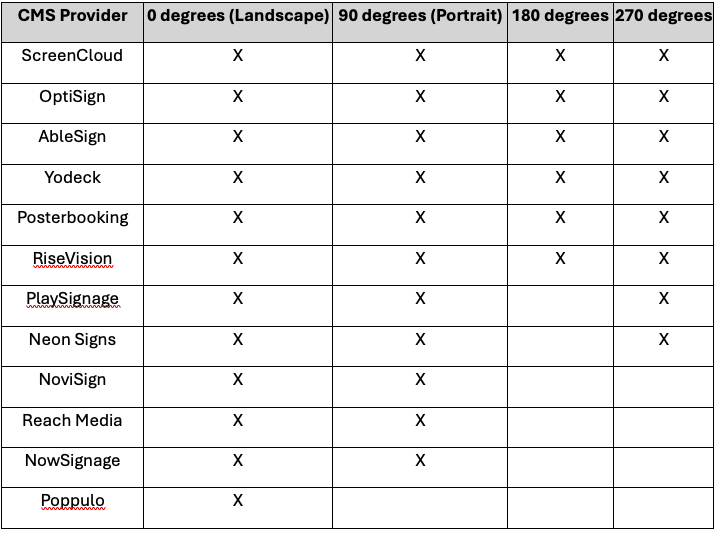
Many CMS providers have features that can override or interfere with the Signage Stick settings menu. To prevent this, identify the feature. Different CMS providers use various terms for this functionality:
* ScreenCloud calls it "sticky mode"
* PlaySignage refers to it as "Launch on Play"
* Other providers may use different terminology
Disable the feature:
* Locate this setting in your CMS provider's configuration or settings menu
* Disable or turn off the feature
* Once disabled, you should be able to access the Signage Stick Settings without interruption from your CMS app.
Note: The exact steps to disable this feature may vary depending on your CMS provider. Consult your provider's documentation or support if you need specific instructions.
Caution: Disabling this feature might affect how your CMS app behaves. Ensure that this change doesn't negatively impact your intended use of the CMS.
DRM / App Store Submission Issues
Amazon Signage now supports OTA (over-the-air) APK updates, eliminating the need for factory resets to update your app. Moving forward, to update your app:
1. Perform full QA testing before submission
Before submitting your updated APK to the Amazon Appstore, please thoroughly test the new build on your end. Since your app is now approved for OTA distribution, the Amazon Signage team will not perform QA testing on your updated APKs.
2. Submit your latest APK to the Amazon Appstore (DRM must be set to No)
When submitting your application, ensure that Amazon DRM is NOT enabled as the Amazon Signage Stick does not support DRM.
• When the Appstore presents the option “Allow Amazon to Apply DRM,” you must select No.
• If your engineering team has integrated the Appstore SDK or any DRM-related APIs, please remove them prior to submission.
3. Notify the Amazon Signage team once the submission is approved
After your submission is fully approved and live on the Amazon Appstore, email signage-support@amazon.com to confirm that the new APK is ready for deployment.
Please include:
• The Amazon Appstore URL of your app
• The APK version number you want deployed
4. Do not send APK files directly
Please do not email APK files. The Signage team will retrieve the app directly from the Appstore using the link you provide.
5. Amazon Signage team pushes the update to OTA
Once we receive the Appstore link and version information, we will upload the new APK to our OTA servers. This usually occurs within 5 business days.
6. You will receive confirmation once upload is complete
After the APK has been successfully uploaded to the OTA server, we will notify you that your latest version is ready for deployment.
7. Automatic rollout to customer devices
Once an APK version is available on the OTA server, updates automatically deploy to end-user devices between 2:00 AM – 5:00 AM local time, provided the devices are powered on and connected to the Internet.