Can't connect to Wi-Fi
Try the following solutions:
- For physical remote users: If you don't see your network listed, press the "Back" button on your remote to refresh the network list.
- Unplug the power adapter, wait 1 minute, and then plug it back in to restart your Stick.
- Restart your modem and router and, if possible, move your Stick and router closer to each other. To restart your network devices:
- Unplug your modem and router and then wait 1 minute.
- Plug in your modem first and wait for the lights to turn on and for it to connect to the internet (about 1 minute).
- Plug in your router and wait for the lights to turn on and for it to connect to the internet (about 1 minute).
If possible, connect your Stick to an Ethernet using a dedicated adapter.
Network / Connectivity issues
If you are using direct internet connection via ethernet cable and ethernet adapter, make sure your ethernet adapter is not getting power from a TV or a display USB port. Please use the power cable and adapter that come with Signage Stick, to connect your ethernet adapter to main power source. TV’s USB ports have limited power output, and we highly recommend using the power adapter and cable that come with Signage sticks.
The following 4 security types are supported, but only through OOBE. These can’t be selected after a stick has been set up. they can only be selected when going through a Signage Stick set up.
- Enhanced Open --- Adds encryption to open networks without requiring a password.
- WEP (Wired Equivalent Privacy) --- Old encryption method using static keys (40/104-bit).
- WPA/WPA2-Personal (PSK) --- Uses a shared password (“Pre-Shared Key”) for authentication.
- WPA3-Personal --- Successor to WPA2 with more secure handshake (SAE – Simultaneous Authentication of Equals).
%20copy.webp)
WPA/EPA2/WPA3-Enterprise is NOT supported at this time.
- These are enterprise authentication types used in corporate or school networks where you sign in with credentials or certificates instead of a shared password. This security type is not supported at this time.
.webp)
Stuck on the Press Play to Start screen
If your screen shows only Press Play to Start instead of a QR code and Press Play to Start, you can set up your Signage Stick in one of two ways:
Option 1: Mobile App Setup
1. Download and install the Amazon Signage Mobile App on your device:
- iOS App Store (requires iOS 14 or later) [https://apps.apple.com/us/app/amazon-signage/id6670145459]
- Google Play (requires Android 11 or later) [https://play.google.com/store/apps/details?id=com.amazon.signage&utm]
2. Open the app and sign in with your Amazon account:
- First-time setup: A new organization will be created with you as the admin.
- Setting up another Stick: Use the same Amazon account as your previous setup.
3. Restart the Signage Stick by unplugging it from power source and plugging it back.
4. Follow the on-screen instructions or visit signage.amazon.com/setup-instructions to finish setup.
Option 2: Remote Control Setup
1. Press and hold the Home button on your remote until Press button to start appears (about 10 seconds).
2. Select your language.
3. Choose your Wi-Fi network and enter the password.
4. When the pairing code appears, go to console.signage.amazon.com on your phone or computer and enter the code to complete setup.
5. Visit https://signage.amazon.com/category-page/setup-instructions to finalize the set up.
Remote won't pair
If you see the following image during setup and your remote isn't connecting, try one of these two troubleshooting tips to quickly get you back on track:
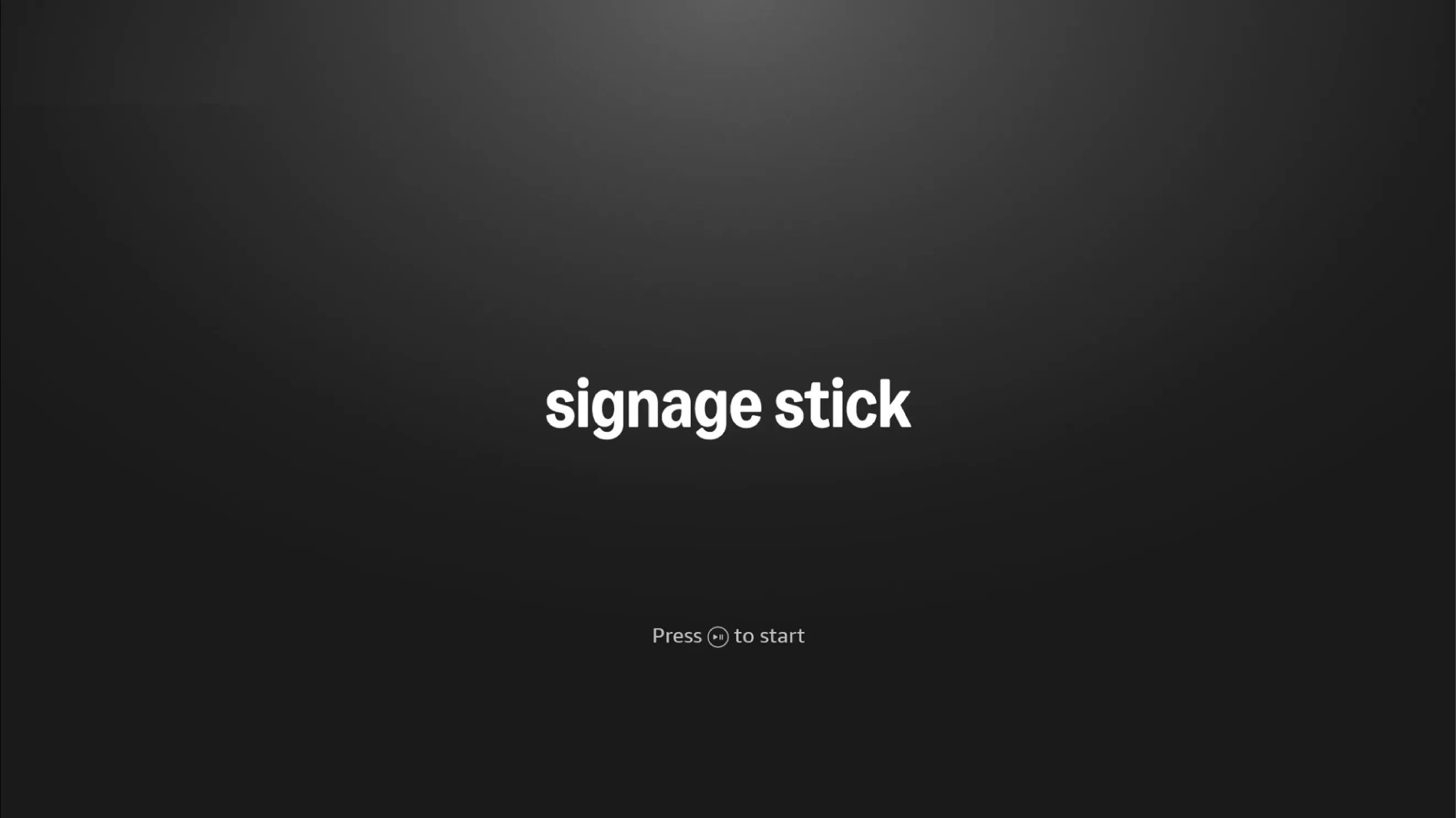
- Press and hold the Home button for at least 10 seconds until the LED rapidly flashes amber.
- Press and hold the Back button and Fast Forward button at the same time for at least 3 seconds.
After completing one of these steps, press the Play button to advance to the language selection screen.
The message “Signage Stick is bind other OG” means that the device is still linked (bound) to another organization group within the Amazon Signage system — typically from its previous setup. A factory reset alone doesn’t automatically remove that binding on the backend, so the device cannot be paired again until it’s released from that original organization.
Steps to Unbind and Re-Enroll
1. Check the original account:
If your organization has previously set up this stick, please try logging into that same Amazon Signage account used during the first setup.
- Go to https://console.signage.amazon.com/ → Login with Amazon → Signage Sticks.
- Locate the stick (you can search by serial number or pairing code).
- Select it and then, under Actions, click on Unregister
2. If you no longer have access to that account:
Please email signage-support@amazon.com with the Device Serial Number (DSN), found on the Amazon Signage Stick box. Once the information is received, the support team will initiate a backend unbind process and notify you once the device is cleared to re-enroll.
Other than the DSN on on your box, you can also find the Device Serial Number (DSN) on your Amazon Signage Stick:
1. On your remote, press the ⚙️ Settings button.
2. Navigate to About Device.
3. Select Model & Hardware.
4. The Serial number will be displayed on screen.
- It typically begins with “G”, for example:
G073SA0144220068
After confirmation, you can retry enrollment through the Amazon Signage mobile app — the “bind other OG” message will no longer appear.