What's in the Amazon Signage Display Box?
Your Amazon Signage Display box contains:
- Amazon Signage Display
- Alexa Voice Remote Enhanced
- 2 AAA batteries
- Power cord
- 2 Display stand legs and 4 Display stand screws
- 4 preinstalled VESA mounting screws (M6 × 12 mm)
Note: Make sure you remove all parts and accessories before disposing of the box.
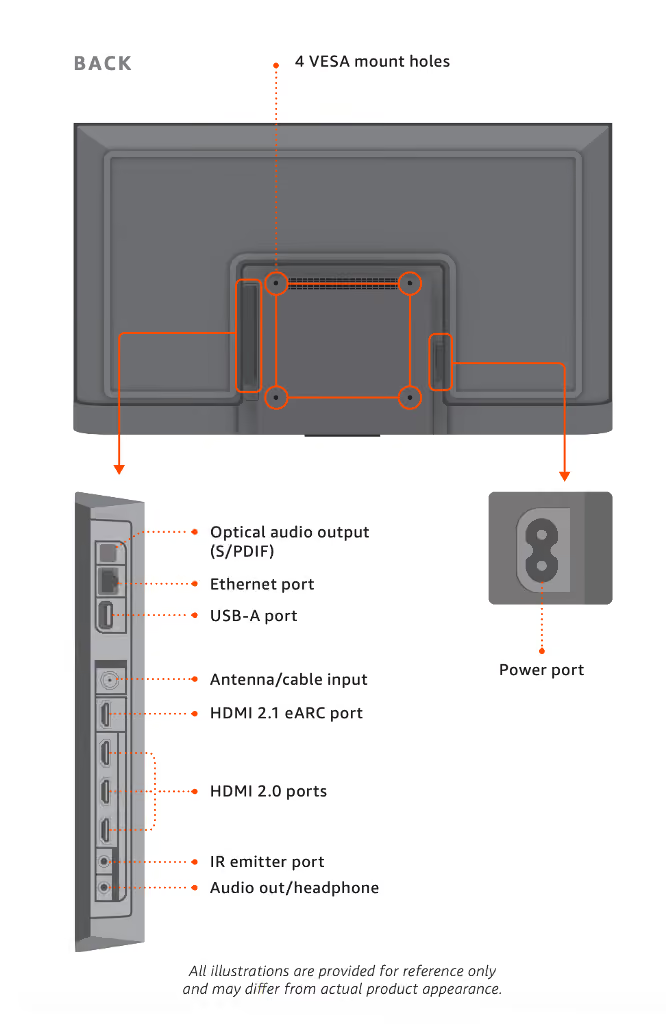
The following are on the back of the Amazon Signage Display:
- Optical audio output (S/PDIF)
- Ethernet port
- USB-A port
- Antenna/cable input
- HDMI 2.1 eARC port
- HDMI 2.0 ports (3)
- IR emitter port
- Audio out/headphone
- Power port — located separately, on the opposite side
- 4 VESA mount holes
Set up your Amazon Signage Display
Have the following ready:
- Your Amazon Signage Display and in-box accessories (power cord, remote, 2 AAA batteries)
- An Amazon account
- A network connection — either your Wi-Fi name and password, or an Ethernet cable and an active network port
- A Phillips screwdriver, if you are assembling the stand
- A VESA wall mount, if you are wall mounting (sold separately)
If you are setting up with the Amazon Signage Mobile App, you also need:
- A mobile device connected to the internet with Bluetooth enabled
- A Wi-Fi network that requires a password — the app cannot use an open Wi-Fi network for setup
If you are setting up with the remote and the Signage Manager Portal, you also need:
- A mobile device or computer connected to the internet, to enter the registration code
- Carefully lay your display on a flat surface with the plastic bag still on the display.
- Cut the plastic bag off of the display.
- Screw both Amazon Signage Display stand legs onto the bottom of the Display using the included Display stand screws and a Phillips screwdriver.
CAUTION: Place the display screen-side down to avoid damaging the buttons located at the base of the Display.
WARNING: Do not place your display in an unstable location to prevent serious injury or damage.
To prevent stripping the screw holes, do not use an electric drill.
Compatible VESA wall mount patterns — 43", 50", and 55": 300 mm (w) × 300 mm (h).
You can use the 4 preinstalled mounting screws (type M6 × 12 mm) with a VESA mount.
Follow the mounting instructions provided with the wall mount. Wall mount sold separately.
Route the power cord and Ethernet cable before securing the Amazon Signage Display to the mount, and leave clearance behind the Amazon Signage Display for ventilation and cabling.
WARNING: Make sure to follow the instructions included with the wall mount to prevent display damage or serious injury to a child or adult.
Meet Your Remote
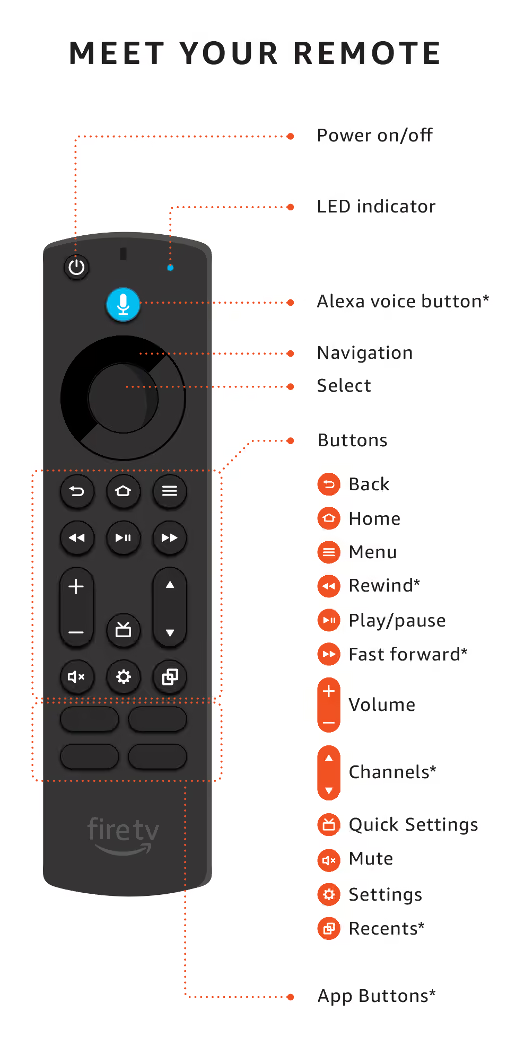
The following remote buttons are not supported in signage mode: Alexa voice, Rewind, Fast forward, Channels, Recents, and App buttons.
Press the Quick Settings button on your remote to open the Quick Settings menu. From there you can adjust:
- Display — picture settings
- Sound — audio settings
- Input — switch between connected HDMI sources
Quick Settings is available on the Amazon Signage Display only. It is not available on the Amazon Signage Stick.
For network, account, and system-level settings, use the Settings button instead.
- Press and hold your thumb on the arrow to release the latch.
- With one thumb pressing on the arrow, use your second thumb to slide open the cover. Insert included batteries.
Tip: Make sure you press the arrow firmly to release the latch as you slide the cover off.
Always replace used batteries with new 1.5V alkaline or 1.2V NiMH rechargeable AAA batteries.
- Plug the power cord into the display's power port, then plug the other end into a power outlet. If you are going to use ethernet, plug the ethernet cable into the display's ethernet port now.
- Press the power button on your remote or display.
- Your remote should already be paired with your display. Continue setup on screen with the remote, or switch to the Amazon Signage Mobile App. Both paths are covered in the next section.
- Peel off the plastic screen protector and the bezel protector.
Tip: If the remote isn't paired, press and hold Home on the remote until the LED flashes. Or, try reinserting the batteries.
Complete Setup and Enroll Your Amazon Signage Display
You can set up your Amazon Signage Display two ways:
- Amazon Signage Mobile App — best for setting up several devices at once, and for saving Wi-Fi and CMS settings as reusable profiles.
- Remote and Signage Manager Portal — best for setting up a single device, or where a mobile device is not available.
Your remote ships already paired with the Amazon Signage Display, so no additional pairing step is needed with either method.
- Download the Amazon Signage Mobile App on your mobile device, from the App Store (iOS) or Google Play Store (Android).
- Set up your Amazon Signage Display hardware first — assemble the stand or mount it, connect power, and press the power button. See Sections 2 and 3.
- Open the app and sign in with your Amazon account. For first-time setup this automatically creates a company/organization with you as admin. For subsequent devices, sign in with the same account you used previously.
- Tap "+" to add a new device. The app scans for devices within Bluetooth range that have not been set up yet.
- Set the Wi-Fi and CMS settings for your Display. You can enter settings manually or apply a saved profile. The first time, you will enter settings manually and can save them as a profile at the end.
- The Amazon Signage Display automatically checks for and downloads updates and installs your selected CMS, which may take around 5 to 10 minutes.
- Select a location for your Amazon Signage Display, create a new one, or tap "Skip for now" to leave it Unassigned.
- Setup is complete once your selected CMS is displayed on screen with further instructions.
- Select your language and country.
- Connect to your network. If an Ethernet cable is already connected, this step is skipped automatically. Otherwise, select your Wi-Fi network and enter the password.
Enterprise Wi-Fi is supported.
- When the registration code appears on screen, go to console.signage.amazon.com on your mobile device or computer.
- Sign in with your Amazon account by selecting "Login with Amazon."
- For your first Amazon Signage Display, follow the on-screen prompts to enter the registration code and select your CMS. For all subsequent devices, select "+ Add Device" in the upper right of the page, then select your CMS and enter the registration code.
- The Amazon Signage Display will install your chosen CMS and any firmware updates, which may take up to 10 minutes. Once complete, the screen shows instructions for connecting to your CMS app.
To create a new company/organization: sign in with your Amazon account to automatically create and manage a new organization as an admin user.
To join an existing company/organization: first have the admin user add your Amazon account to the organization, then sign in with that account.
Select a location for your new Amazon Signage Display, create a new location to assign it to, or skip this step. If you skip it, the Amazon Signage Display defaults to a location of "Unassigned."
To open the virtual remote for your Amazon Signage Display:
- On the app homepage, select the location of the Amazon Signage Display from the list. If the Amazon Signage Display is unassigned, select "Unassigned."
- Tap the display you want to control.
- Tap the circular remote control icon in the bottom right to open the virtual remote.
Pairing a Replacement Remote
Your remote ships already paired with the Amazon Signage Display, so no pairing step is required during setup.
If the remote is not responding:
- Check that the batteries are installed correctly and are not depleted. Replace them with new 1.5V alkaline or 1.2V NiMH rechargeable AAA batteries if needed.
- Press and hold the Home button on the remote until the LED flashes.
- If it still does not respond, remove and reinsert the batteries, then try step 2 again.