
Contact Us
Email Support Hours:
Monday to Friday 9AM to 5PM PST
Frequently Asked Questions
How do I display content in portrait mode?
Displaying content in portrait mode with Signage involves a two-step process:
- Content Preparation:
- Convert the content orientation from portrait to landscape using your CMS. Make sure your CMS supports orientation changes.
- Does the Signage Stick support orientation changes?
- Physical Display Adjustment:
- After preparing the content, physically rotate your monitor 90 degrees to achieve portrait orientation.
- Important notes:
- Regular monitors, unlike smartphones, don't have sensors to detect orientation changes automatically.
- The Signage Stick's display output (frame buffer) is always in landscape mode, regardless of the monitor's physical orientation.
- Ensure your monitor supports rotation or has a stand that allows for portrait positioning.
How do I connect my Signage Stick to the Internet via Ethernet cable?
To connect your Signage Stick to the Internet using an Ethernet cable, you'll need an Ethernet adapter. Here's what you need to know:Required hardware:
- An Ethernet adapter compatible with Fire TV Stick, such as the Ethernet Adapter for Amazon Fire TV Devices
Connection steps:
- Plug Amazon Signage Stick into HDMI port in your TV.
- Plug the Micro USB end of the adapter into your Signage stick.
- Connect an Ethernet cable from your router or network switch to the RJ45 port on the adapter.
- Power on your adapter.
- Your Signage stick should automatically detect the Ethernet connection.
- If ethernet is not automatically detected, you will first need to set up your Stick using Wi-Fi, then switch to ethernet by following the steps below:
- Disconnect ethernet cable
- Restart your Stick by unplugging power and plugging back in
- Set up your Stick using a wireless network (you can use the physical remote or mobile app to complete initial setup)
- Once setup is complete, disable Wi-Fi in the Stick’s OS system settings by following one of the following 2 options
- Using the physical remote, press the gear icon, select Network & internet and turn off Wi-Fi
or
- Using the mobile app, launch the Stick’s virtual remote, tap the gear icon, select Network & internet and turn off Wi-Fi
- Plug the ethernet cable back in. A network connection will automatically be established. You can confirm by checking the Stick’s status in the Signage Manager or mobile app (it may take 1-2 minutes to update the status)
How can I prevent my CMS app from interfering with the settings menu?
Many CMS providers have features that can override or interfere with the Signage Stick settings menu. To prevent this, identify the feature. Different CMS providers use various terms for this functionality:
- ScreenCloud calls it "sticky mode"
- PlaySignage refers to it as "Launch on Play"
- Other providers may use different terminology
Disable the feature:
- Locate this setting in your CMS provider's configuration or settings menu
- Disable or turn off the feature
- Once disabled, you should be able to access the Signage Stick Settings without interruption from your CMS app.
Note: The exact steps to disable this feature may vary depending on your CMS provider. Consult your provider's documentation or support if you need specific instructions.
Caution: Disabling this feature might affect how your CMS app behaves. Ensure that this change doesn't negatively impact your intended use of the CMS.
How do I get the MAC address of the Signage Stick so I can connect it to the network via MAB?
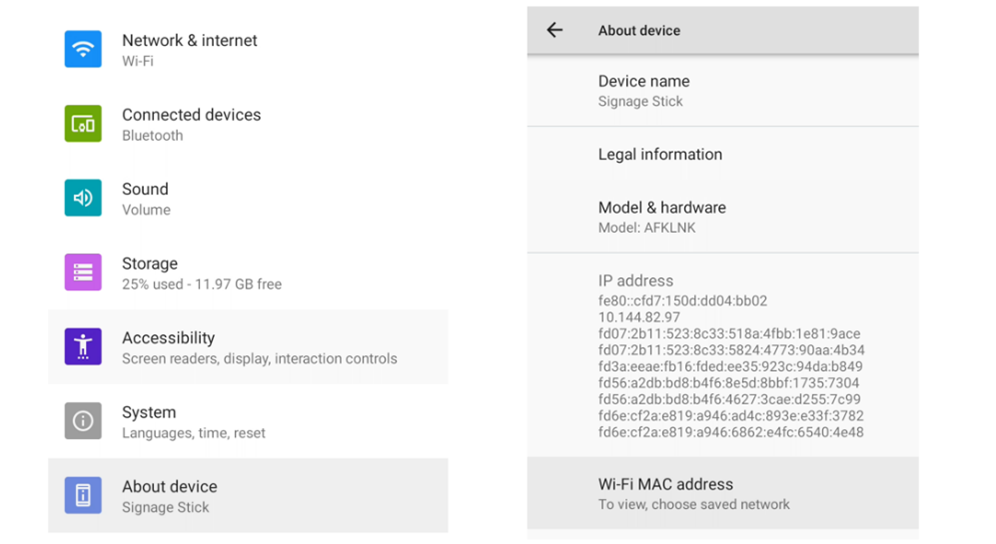
The MAC address is required to configure your network for MAB, which allows the stick to connect to the network. To connect your Signage stick to the network using MAC Address-Based Authentication (MAB), follow these steps to locate the stick's MAC address:
Using either the virtual remote or the physical remote, open settings by pressing the gear icon () and then navigate to "About Device" >>> "Device Wi-Fi MAC address."
What are the Wi-Fi bands supported with the Signage Stick?
Wi-Fi 6E tri-band: 802.11 a/b/g/n/ac/ax (2.4GHz, 5GHz, and 6GHz)
Tri-band support allows for more flexible and robust connectivity options, potentially reducing interference in crowded Wi-Fi environments.
Does the Signage Stick support orientation changes?
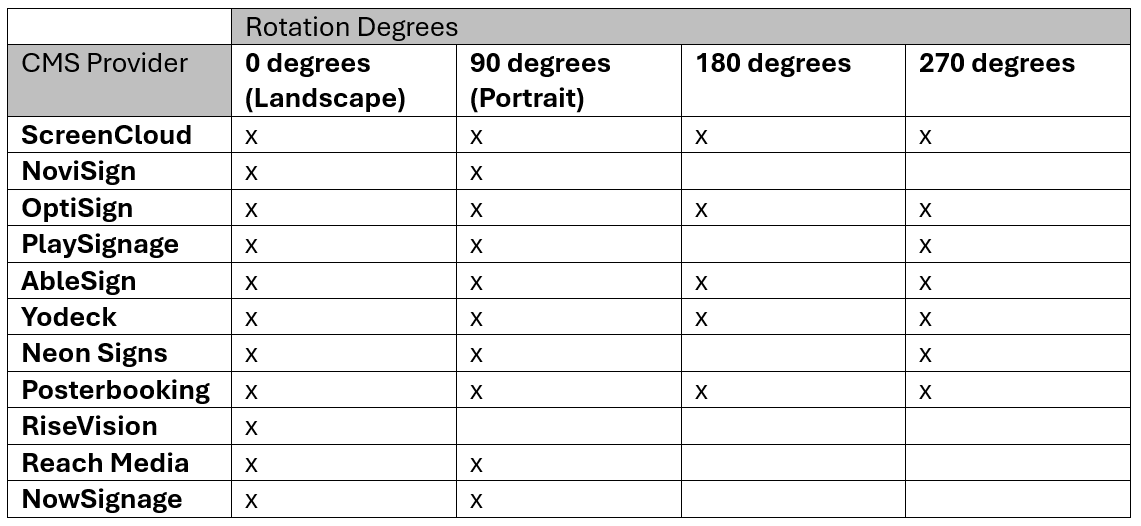
While the Signage stick itself does not support screen orientation changes, many of the CMSs that work with the Signage stick do provide this functionality.
Here's a list of the CMS platforms and their supported screen orientation options:
How do you handle or store customer data?
We take customer data privacy very seriously and adhere to Amazon's comprehensive privacy policies. For information about how Amazon collects and/or uses data, please refer to Amazon Privacy Notice at https://www.amazon.com/gp/help/customer/display.html?nodeId=GX7NJQ4ZB8MHFRNJ.
How can I optimize my Signage Stick's network performance?
Signage Sticks have Wi-Fi 6E support for 6 GHz band connections, which prevent the overcrowding of sticks on a Wi-Fi network and allow for faster speeds, increased bandwidth, and less latency.
To get the best performance from your Wi-Fi 6E device:
- Upgrade to a Wi-Fi 6E or higher Wi-Fi Generation capable router. For larger locations, consider mesh routers for whole location coverage.
- Configure the router to serve the same network name(SSID) for the 2.4 GHz, 5 GHz, and 6 GHz band.
These changes make your Signage Stick automatically connect to the best performing band available, based on signal strength from the Wi-Fi router.
I get a login error when trying to log in to the Signage Manager Portal. What should I do?
If you get a login error or have forgotten your Amazon account password when logging in to the Signage Manager Portal, you can reset your password here: https://www.amazon.com/gp/css/account/forgot-password/email.html.
How do I log in to the Signage Manager Portal?
Navigate to signage.amazon.com on your mobile device or computer, click "Login to Signage Manager" in the rightmost corner, select “Login with Amazon,” and enter your Amazon account credentials to log in.