Contact Us
Email Support Hours:
Monday to Friday 9AM to 5PM PST
Frequently Asked Questions
Can I set up multiple Signage Sticks with different Wi-Fi credentials/CMS preferences at the same time on the Mobile App?
No. To set up Signage Sticks with different Wi-Fi credentials/CMS preferences, you will need to complete the setup process separately for each combination of settings.
Why aren't my Signage Stick(s) being discovered during a scan?
There are a couple of factors that could lead to Signage Sticks not being discovered:
- Your Stick is not fully charged yet. Make sure your Stick is connected to a power source, wait for 5 minutes, and then try again.
- Your mobile device may be out of the Stick’s Bluetooth range. Try moving your device within 10 feet of the Stick.
If none of the above works, try unplugging the Stick and then reconnecting it to power. Wait for the Signage Stick to fully restart before rescanning.
When setting up using the mobile app, how can I identify which stick(s) have been scanned?
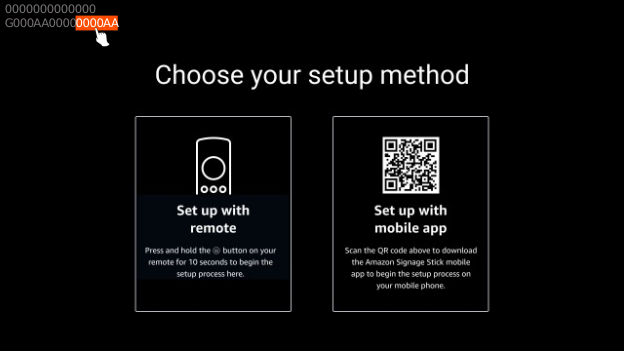
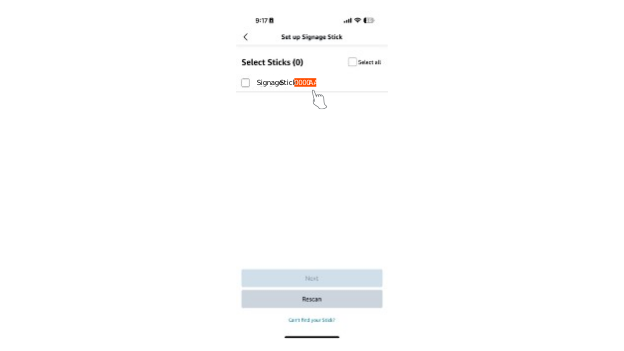
If your Stick is connected to a display during scanning, you’ll see a 16 digit DSN on the first screen in the top left corner. That last 6 digits will be displayed to identify the Sticks that have been scanned. You can also find the DSN on the outside of the Stick’s packaging.
If I set up Signage Sticks with the physical remote and Signage Manager Portal, can I view them in the Signage Mobile App (and vice versa)?
Yes, you can view Sticks set up with the physical remote and Signage Manager Portal in the mobile app. The reverse is also true: if you set up Signage Sticks using the app, you can also view and manage them from the web Signage Manager Portal.
How does setting up with the Signage Mobile App differ from using the physical remote with the Signage Manager Portal?
You can set up multiple sticks at once using the app, but can only set up one at a time using the physical remote with the portal. Using the app, you can also set up sticks before connecting to a display by just connecting to power, which is not possible with the portal. However, regardless of which method you choose, you will be able to manage your Sticks with both the app and the portal after setup.
Nothing happens when I point my browser to https://console.signage.amazon.com/ and click on "Login with Amazon." What should I do?
This issue is commonly caused by browser filters blocking essential login components. To resolve this issue, check if your browser has a filter called Linewize installed, as this filter is known to block assets.loginwithamazon.com. On personal devices you can either disable the filter or add assets.loginwithamazon.com to the allowed sites list. For work/school devices, contact your IT administrator to allowlist assets.loginwithamazon.com. If the problem persists, try using a different browser, clearing your browser cache and cookies, or checking if any other security software might be blocking the connection.
My Amazon Signage Stick disappeared from the Signage Manager Portal after I changed my Amazon business account email. How can I recover it?
This happens because the Amazon Signage Stick remains registered to your original email address. Follow these steps to resolve the issue:
- Temporarily revert your Amazon account back to the original email address
- Log in to Signage Manager with the original email
- Remove the Amazon Signage Stick from Signage Manager
- Update your Amazon business account to your new email address
- Log in to Signage Manager with the new email
- Re-add your Amazon Signage Stick
Note: Make sure to complete all steps in this order to ensure proper re-registration of your stick.
What display resolutions are supported regarding EDID?
Amazon Signage Stick supports EDID (Extended Display Identification Data) and the supported resolutions 2160p at 24/25/30/50/60 Hz, 1080p or 720p at 50/60 Hz.
Does Amazon Signage Stick support HDCP?
Amazon Signage Stick is HDCP (High-bandwidth Digital Content Protection) version 2.0 compliant. HDCP is a protection protocol to prevent unlawful recording of video playback. HDCP is a mandatory security feature that cannot be disabled, as it's part of Amazon Signage Stick's compliance requirements. A display without HDCP enabled will result in a black screen.
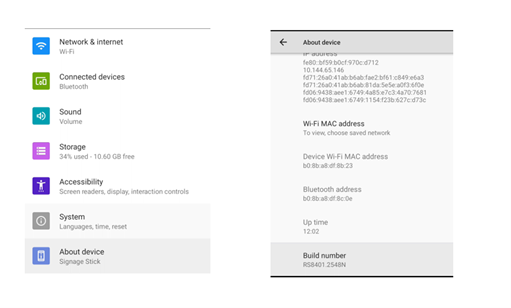
How do I get the build version of my Amazon Signage Stick?
Using either the virtual remote or the physical remote, open settings by pressing the gear icon and then navigate to "About Device" >>> "Build number."