
Contact Us
Email Support Hours:
Monday to Friday 9AM to 5PM PST
Frequently Asked Questions
Why does the app sometimes show a Signage Stick as offline even though I know it’s online, or vice versa?
Various factors can impact the amount of time it takes for a status change to be reflected in the app, including network traffic and the number of concurrent connections to our backend. This has no impact on the Stick’s performance; you should still be able to manage the Stick with the virtual remote.
How do I remotely restart/reset my Stick in the mobile app if my virtual remote is displaying a “Not connected” message?
If you launch the virtual remote when your mobile device is not within Signage Stick’s Bluetooth range, you’ll see a “Not connected” message. In this case, you can still use the virtual remote to restart/reset your Stick if your mobile device has an internet connection. However, launching the Settings menu only works when the remote is connected over Bluetooth.
I reset my Signage Stick, but I can still see it in the mobile app. How do I remove it from the mobile app?
After reset, a Stick may remain visible on the mobile app until it is set up again. To remove a reset Stick from the mobile app, sign into the web Signage Manager Portal with your Amazon account, find the Stick you want to remove, and click the trash can icon on the very right to remove it. The Stick should disappear from both the Signage Manager Portal and the mobile app.
Why is my content missing from the screen or not showing up correctly?
Please contact your content management vendor directly for help setting up an account, uploading content, or troubleshooting performance. You can also consider updating your stick to a different CMS by resetting your stick and redoing the setup process.
My Stick won't start up/the Amazon logo is stuck on the display screen. What should I do?
Try the following solutions:
- Unplug the power adapter, wait 1 minute, and then plug it back in to restart your Stick
- Make sure you're using the power cord and adapter included with your Stick.
- Let the stick sit for 10+ minutes (turned on)and see if the screen changes. Depending on your network speed, installing software updates may take longer.
- If possible, try using the Signage Stick both with and without an HDMI adapter or extender.
- Make sure that you're using a high-speed HDMI cable.
- Try using a different HDMI port.
- Try plugging the stick directly into your display instead of using a HDMI hub.
- Confirm that your display is HDCP-compliant by reviewing the video-cable section of your display owner's manual. The Signage Stick will only work with HDCP-compliant devices. If possible, try using a different display.
If the issue persists, try resetting your Signage Stick.
My Stick keeps powering off unexpectedly. What should I do?
If your stick is powering off unexpectedly, make sure you're using the provided power adapter and cable. Note that not all displays support USB power.
How do I remove a Signage Stick from the Signage Manager Portal?
- From the dashboard, select the "Trash“ icon.
- In the pop-up, select "Confirm" to delete the Stick from your account. This will only remove the Stick from your Signage Manager Portal and will not change any settings on the Stick itself.
Do not remove a Stick from the Signage Manager Portal before resetting it.
How do I reset a Signage Stick?
Mobile App:
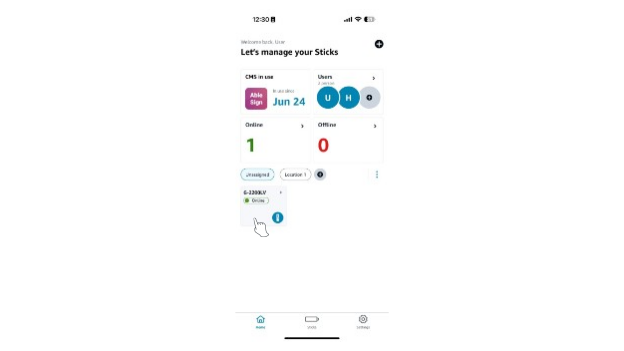
1) On the homepage, select the location of the Stick from the list in the middle. If the Stick is unassigned, select "Unassigned."
2) Tap on the Stick you want to reset.
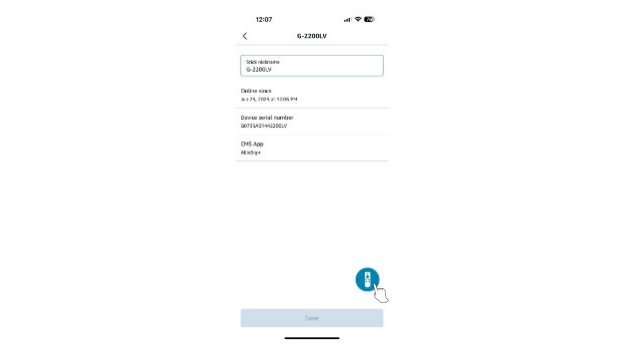
3) Tap on the circular remote control icon on the bottom right. This will open the remote control.
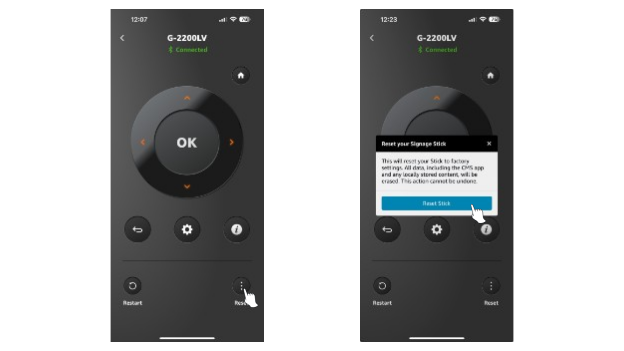
4) Tap the reset icon on the bottom left. After reset, your Stick will show as "Offline" in the mobile app.
Signage Manager Portal:
Click the 3 dots in the table entry corresponding to your Stick, and then select “Factory reset” from the options. To find the correct entry, you can search for the Stick using the DSN search bar or the device name search bar.
Physical Remote:
Method 1:
1) Press and hold the "Back" button and the right side of the navigation circle together for 10 seconds.
2) The stick will start going through reset automatically after several more seconds.
Method 2:
1) Click on the "Settings" button on your remote.
2) On your screen, choose "System."
3) Choose "Reset options".
4) Use the navigation circle on your remote to select "Erase all data (factory reset)."
Note that a reset stick will still remain in the Signage Manager Portal unless it is manually removed.
How do I restart a Signage Stick?
Mobile App:
1. On the homepage, select the location of the Stick from the list in the middle. If the Stick is unassigned, select "Unassigned."
2. Tap on the Stick you want to restart.
3. Tap on the circular remote-control icon on the bottom right. This will open the remote control.
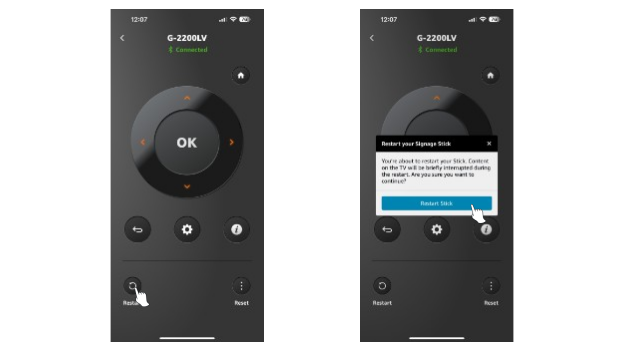
4. Tap the restart icon on the bottom left.
Signage Manager Portal:
Click the 3 dots in the table entry corresponding to your Stick, and then select “Reboot” from the options. To find the correct entry, you can search for the Stick using the DSN search bar or the device name search bar.
Physical Remote:
Unplug the power adapter, wait 1 minute, and then plug it back in.