
Contact Us
Email Support Hours:
Monday to Friday 9AM to 5PM PST
Frequently Asked Questions
How do I rename a Signage Stick?
Mobile App:
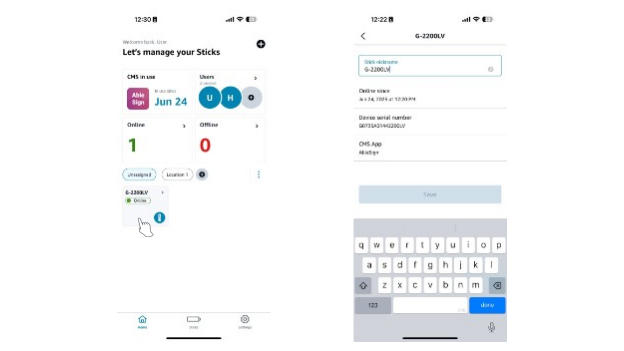
- On the homepage, select the location of the Stick from the list in the middle. If the Stick is unassigned, select "Unassigned."
- Tap on the Stick you want to rename.
- Type in the "Stick nickname" text box and tap "Save" when done to rename your Stick.
Signage Manager Portal:
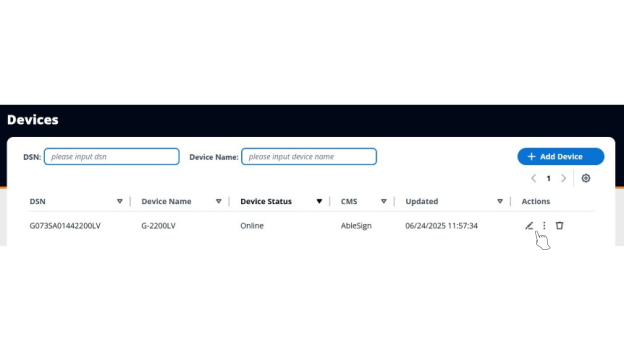
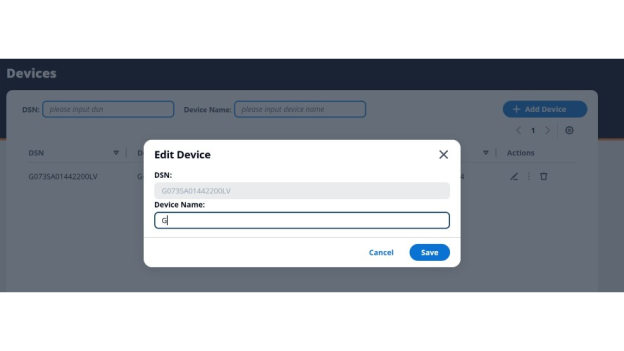
Click the pencil icon under the "Actions" column of the table entry corresponding to your Stick. To find the correct entry, you can search for the Stick using the DSN search bar or the device name search bar.
How do I filter Signage Sticks by status?
Mobile App:
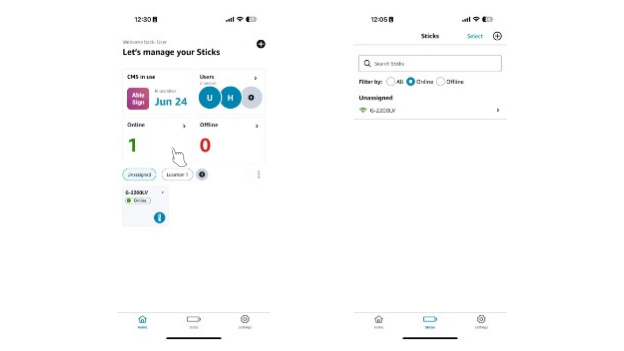
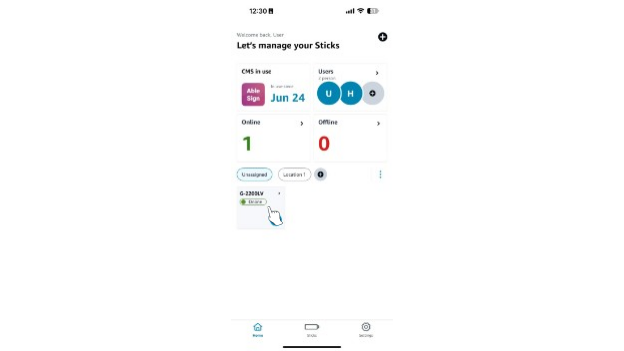
On the homepage, tap the block labeled "Online" to see all online sticks, and the block labeled "Offline" to see all offline sticks.
Signage Manager Portal:
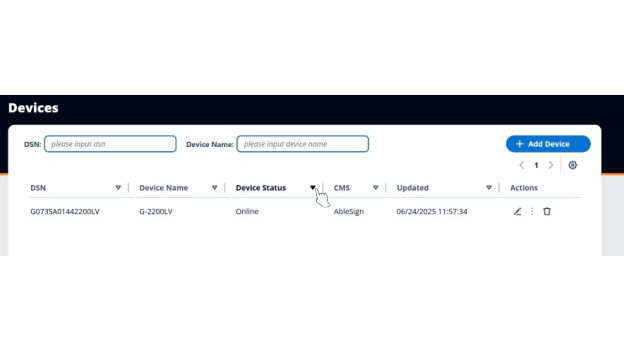
On the devices dashboard, click the down-facing arrow next to “Device Status.” This will group all the “Offline” Sticks at the top and all the “Online” sticks below.
How do I view the online/offline status of a Signage Stick?
Mobile App:
On the homepage, select the location of the Stick from the list in the middle. If the Stick is unassigned, select "Unassigned." Underneath the list, you will see each Stick assigned to that location and its online/offline status.
Signage Manager Portal:
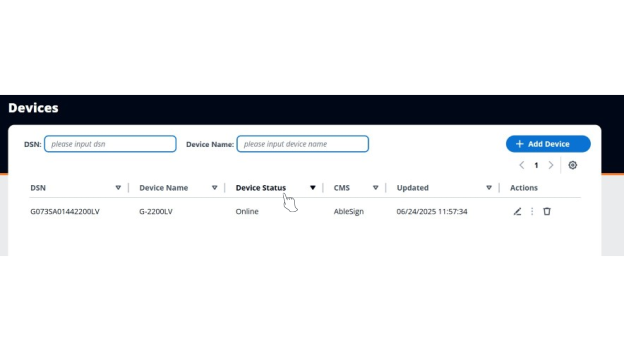
Look at the "Device Status" column of the table entry corresponding to your Stick. To find the correct entry, you can search for the Stick using the DSN search bar or the device name search bar.
I can't connect my Stick to my Wi-Fi network. What should I do?
Try the following solutions:
- For physical remote users: If you don't see your network listed, press the "Back" button on your remote to refresh the network list.
- Unplug the power adapter, wait 1 minute, and then plug it back in to restart your Stick.
- Restart your modem and router and, if possible, move your Stick and router closer to each other. To restart your network devices:
- Unplug your modem and router and then wait 1 minute.
- Plug in your modem first and wait for the lights to turn on and for it to connect to the internet (about 1 minute).
- Plug in your router and wait for the lights to turn on and for it to connect to the internet (about 1 minute).
- If possible, connect your Stick to Ethernet using a dedicated adapter.
My physical remote doesn't work/the screen displays "Pairing failed." What should I do?
Try one of the following solutions and then attempt to pair your Stick again by holding the Home button on your remote until "Press button to start" appears on-screen (about 10 seconds):
- Move your remote closer to your stick, within 10ft (3 m).
- Remove the batteries from your remote, wait 30seconds, and put them back in.
- Try using a new pair of alkaline batteries.
- Press and hold the "Left" button, "Menu" button, and "Back" button at the same time for 12seconds to reset your remote.
- Unplug your Signage Stick, wait 5 seconds, and then plug it back in.
- For more troubleshooting information, visit this webpage: https://www.amazon.com/gp/help/customer/display.html?nodeId=GBSC9NRB9A9SNM2Y.
How do I use the remote for a Signage Stick?
Mobile App:
- On the homepage, select the location of the Stick from the list in the middle. If the Stick is unassigned, select "Unassigned."
- Tap on the Stick you want to control.
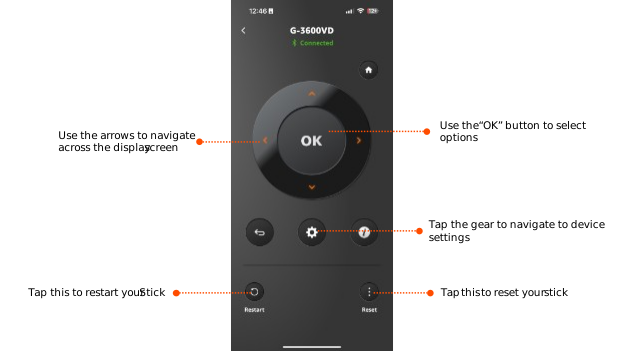
- Tap on the circular remote control icon in the bottom right to open the virtual remote.
Physical Remote:
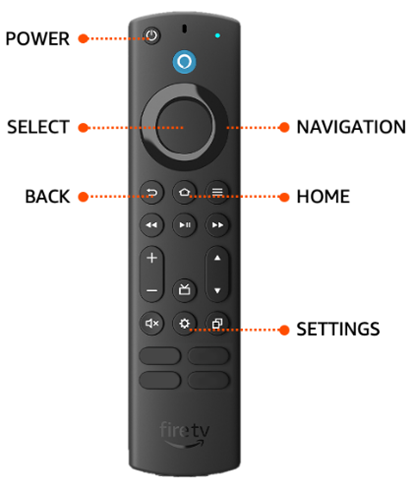
Power - Turn your Signage Stick on or off
Navigation Ring- Navigate your stick by pressing up, down, left, or right on the ring
Select - The center of the Navigation Ring is the Select button
Back - Return to the previous screen. Following initial set up, your Signage Stick restricts the use of this button to prevent your stick from exiting kiosk
Home - Return to the home screen. Following initial set up, your Signage Stick restricts the use of this button to prevent your stick from exiting kiosk
Settings -Open the settings menu on your Signage Stick. This is always available to change Wi-Fi and other settings following setup.
Alexa and App buttons are disabled on Amazon remotes paired to Signage Sticks.
How do I change the Wi-Fi network of a Signage Stick?
Mobile App:
- With your Signage Stick powered on and connected to a screen, launch the mobile app.
- Launch the virtual remote for your Stick.
- Tap the "Settings" button on the virtual remote (gear icon). You should see the screen connected to your Stick switch to a settings menu.
- On the screen, navigate to "Network & Internet" using the arrow buttons on the virtual remote to move and the "OK" button to select.
- Navigate to "Wi-Fi" and select it to enter the Wi-Fi menu.
- From the list of Wi-Fi networks, navigate to the one you want to use and tap "OK" to connect.
Physical Remote:
- Press the "Settings" button on the physical remote paired to your Signage Stick.
- Use the "Select" button on your remote to select "Network & Internet" from the on-screen menu
- Use the "Down" button to scroll to "Wi-Fi" and use the "OK" button on your remote to select "Wi-Fi."
- Scroll down to find and select your network name.
- Enter your Wi-Fi password when prompted.
How do I set up a Stick with an open Wi-Fi network?
We recommend using a secure network for Stick setup and management to maximize security. However, if you wish to set up a Stick with an open Wi-Fi network (network that does not require a password), you must set up with the physical remote and Signage Manager Portal. The mobile app only supports setup with protected Wi-Fi networks.
If you have access to a protected Wi-Fi network but want your Stick to ultimately use an open Wi-Fi network, you can also use the app to set up with the protected Wi-Fi network and then change it after setup.
After I connect my Signage Stick to a display, why does the mobile app show my Signage Stick as online when the display still shows “installing”?
The app will show a Signage Stick as online as soon as an internet connection is established. However, the Signage Stick may need to update its firmware and install the CMS application, which can take 10+ minutes depending on network conditions.
My Signage Stick(s) were found during scanning but mobile app setup failed to complete. What should I do?
There are a few situations that can lead to an unsuccessful setup (e.g. Wi-Fi or Bluetooth connection lost, Signage Stick no longer in paring mode).
In most cases, unplugging the Signage Stick, plugging it back in, and repeating the setup process will resolve the issue. Additionally, verify that the Wi-Fi password you entered is accurate. If this doesn’t work, try setting up using the physical remote and Signage Manager Portal. If that fails, please contact support at signage-support@amazon.com.